

Connect e-conomic to Power BI in minutes with Peliqan. In this tutorial, you use the e-conomic Power BI connector to load live e-conomic (Visma) data – customers, invoices, products, accounts, general ledger entries and orders – into Power BI for reporting and dashboards, so you skip manual exports and API work.
How to connect e-conomic to Power BI
- 1First, connect e-conomic in Peliqan. Sign up, then authenticate your e-conomic account through the e-conomic connector. Peliqan handles authentication, rate limits and incremental refresh for you.
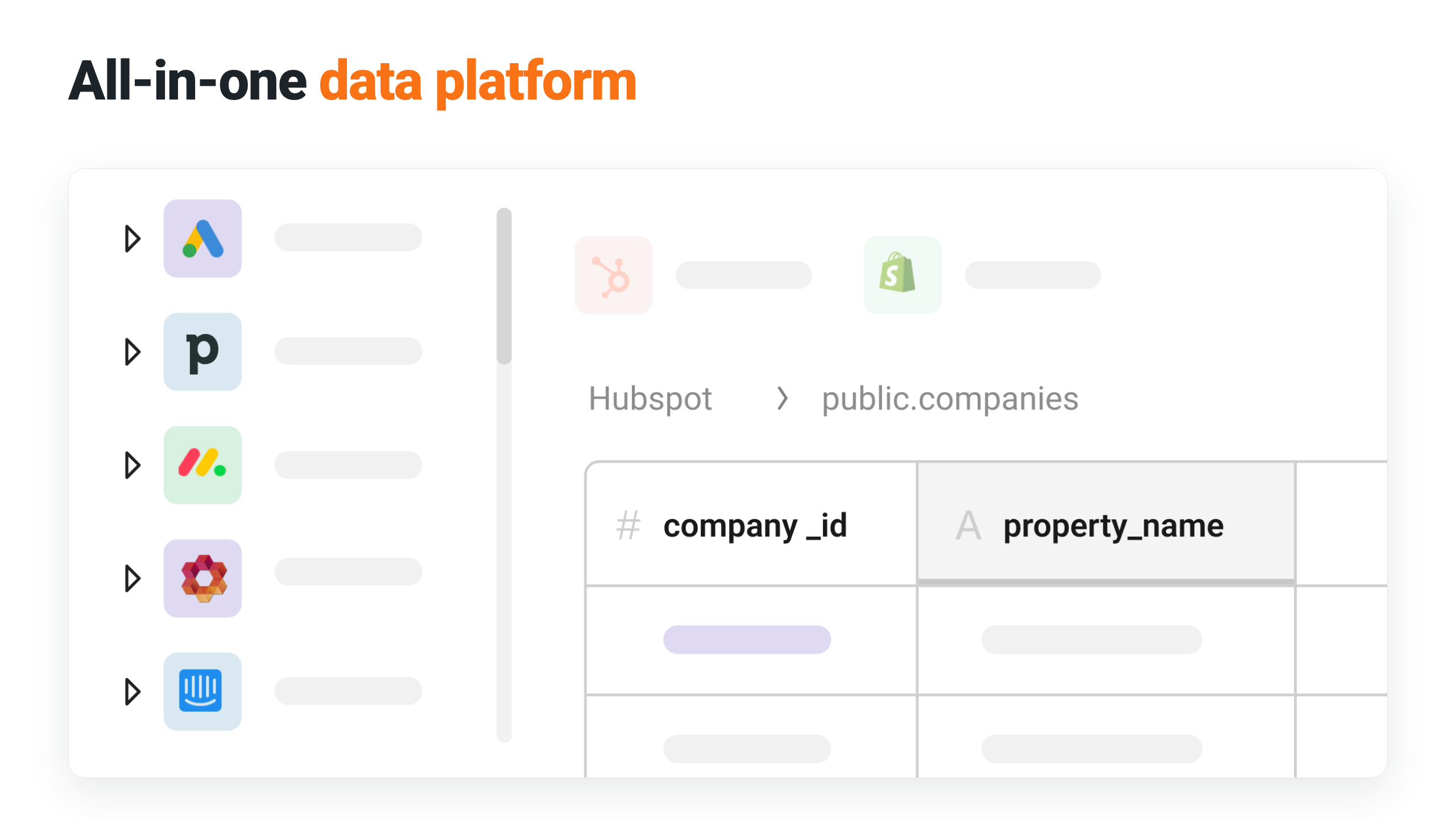
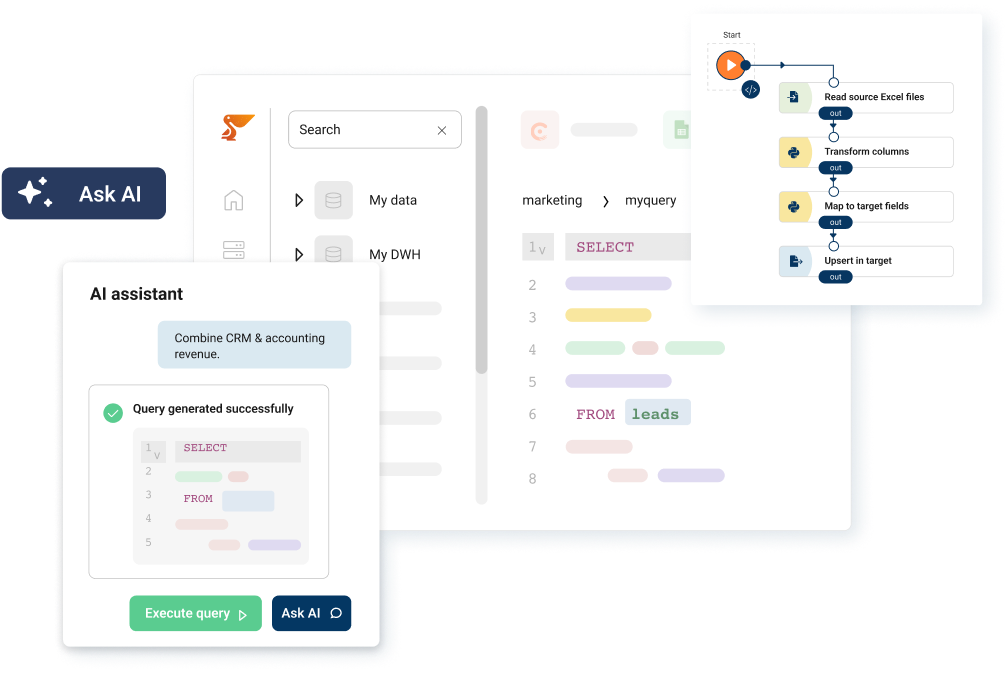
- 2Next, Peliqan syncs your data. Peliqan loads your e-conomic data into its built-in cloud data warehouse and exposes it as clean SQL tables and views.
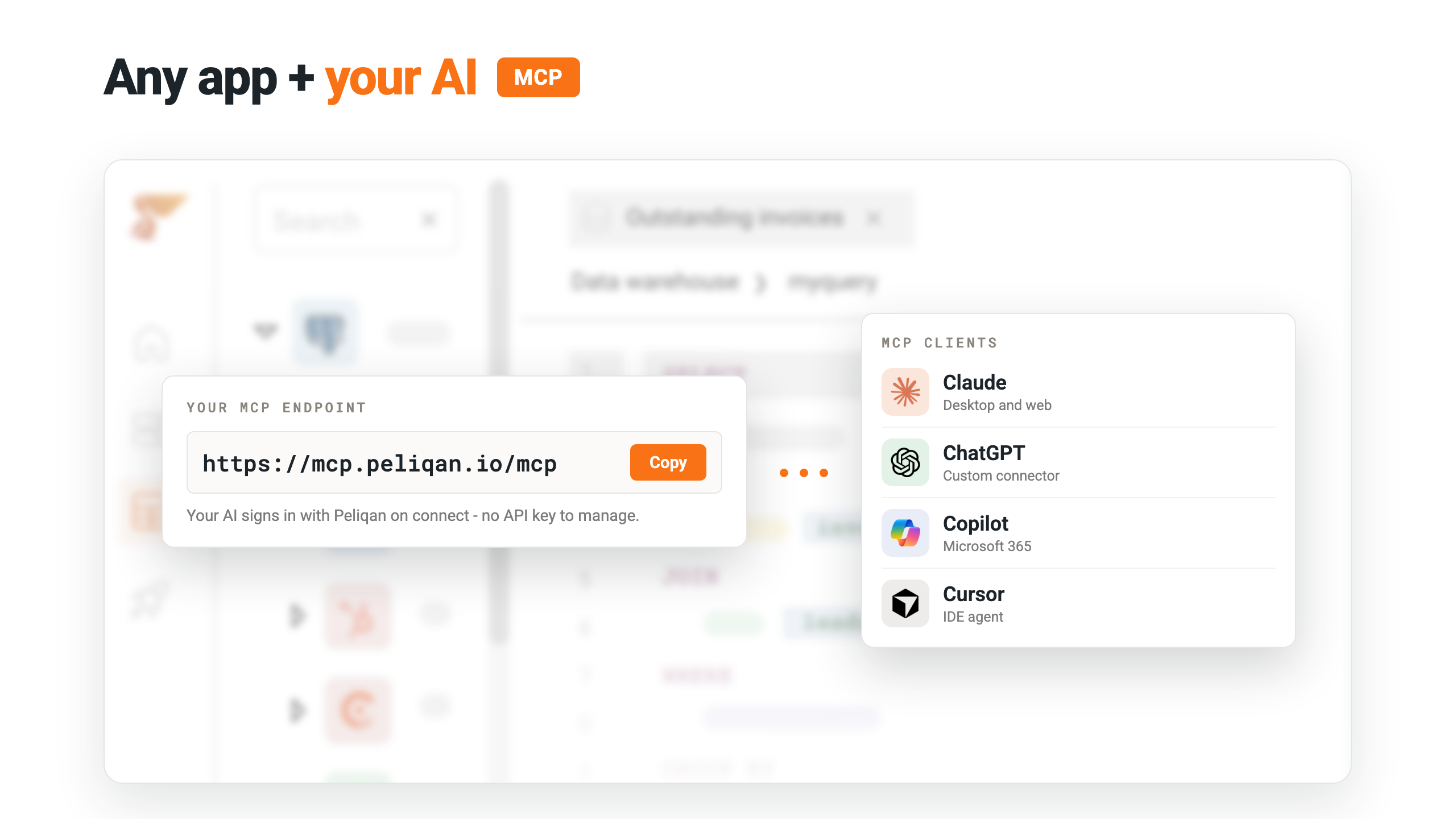
- 3Finally, connect Power BI. Point Power BI Desktop or Power BI Service at the PostgreSQL endpoint Peliqan provides, then import or use DirectQuery to build your reports.
What you can build in Power BI with e-conomic data
- Revenue and P&L dashboards
- AR aging by customer
- Sales by product
- GL and account analysis
- Combine e-conomic with CRM, HR or operational data in one Power BI model
Live dashboards and automatic refresh
Peliqan keeps your e-conomic data current on a schedule, so reports in Power BI Service refresh automatically without manual exports. Moreover, every report – from revenue and P&L dashboards to GL and account analysis – runs on the same governed warehouse, so you work from one consistent source of truth. To see how Peliqan feeds any BI tool, visit the Peliqan for BI & reporting page.
No code or native connector needed
e-conomic does not ship a native Power BI connector. Instead, Peliqan provides a managed e-conomic-to-Power BI connector that handles the API, sync and data modelling, so you write and maintain no integration code. It works with Power BI Desktop, Power BI Service and Power BI Pro or Premium. You can also connect Tableau, Looker or Metabase to the same Power BI connector.
Ready to connect e-conomic to Power BI? Get started with Peliqan.