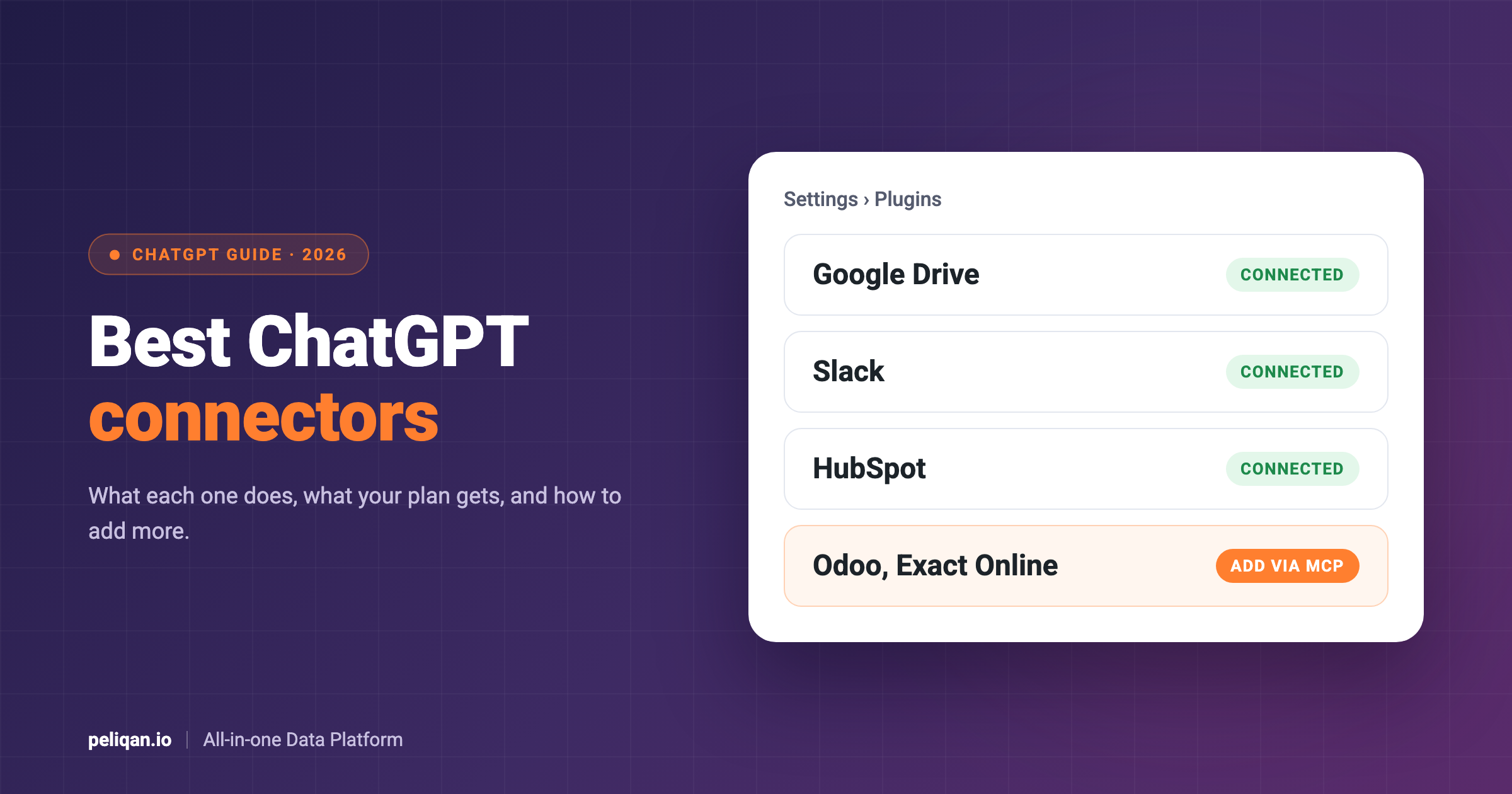





ChatGPT connectors let ChatGPT read and act on the apps you already use, such as Google Drive, Slack, HubSpot or GitHub. OpenAI now calls them apps, and you manage them under Settings, then Plugins. This guide explains what changed, lists the most useful ChatGPT connectors by job, shows which plans get what, and explains how to connect apps that are not in the directory.
ChatGPT connectors: the short answer
A ChatGPT connector links one of your accounts, such as Google Drive or Outlook, to ChatGPT. Once it is connected, you can ask ChatGPT to find a file, summarize a thread or, for some apps, create or update something in that app.
OpenAI has since renamed connectors to apps and grouped them into plugins. A plugin can contain one or more apps plus skills, which are reusable instructions for a task. The old word is still what most people search for, so this guide uses both.
If the app you need is not in ChatGPT’s directory, a Business, Enterprise or Edu workspace can add it as a custom MCP server. Pro users can do the same with read-only access.
What are ChatGPT connectors?
The names have changed a few times, which makes help articles hard to follow. This is what each term means today, based on OpenAI’s guide to connected apps.
In practice, the difference between an app and a plugin rarely matters when you start. You open the directory, pick the service you use, connect your account and start asking questions.
How to connect an app in ChatGPT
Open Settings, then Plugins, and select the app you want, or browse the directory from Plugins in the sidebar. Select Install plugin if it is shown, then Connect, and sign in to the account that holds the information you want ChatGPT to use. Review the permissions it asks for and approve them. On very old versions of the mobile app, the menu may still say Apps instead of Plugins.
To use the app in a chat, type @ and its name, or select + and pick it from the menu. ChatGPT also uses installed plugins on its own when they are relevant. For example, after connecting Google Drive you can ask: “Find my project brief in Google Drive and summarize the next steps.”
Each app also has a permission setting that decides when ChatGPT asks you before it acts: always ask, allow read actions, allow low-risk actions, or, for some apps, allow all actions. The last option means supported actions can run without a second confirmation, so keep it for apps where a mistake is easy to undo. OpenAI’s article on managing app permissions explains each level.
ChatGPT connectors list: the most useful ones at a glance
These are well-known business apps we found in ChatGPT’s public plugin directory in October 2026. What you see in your own account can differ by plan, region and workspace.
The best ChatGPT connectors, grouped by job
Files and docs: Google Drive, SharePoint, Box, Notion
For most teams, the first connector to add is wherever your documents live. With Google Drive or SharePoint connected, ChatGPT can find a file by name or topic, read Docs, Sheets and Slides, and summarize or compare them. OpenAI’s Google Drive setup guide covers which file types it can read.
If your company runs on Microsoft 365, SharePoint is the equivalent. The SharePoint setup guide explains how site access works.
Box and Notion follow the same pattern and are useful when your wikis or contracts live there; see the Notion setup guide for details on what it can read.
Email, chat and meetings: Outlook, Teams, Slack
These apps help you catch up rather than search. Ask ChatGPT what changed in a Slack channel this week, or to summarize a long Outlook thread before a meeting. Some of them can also start a task when something happens, such as a new message in a Slack channel, through ChatGPT’s scheduled tasks.
Each has its own setup guide from OpenAI:
Meeting tools such as Granola and Otter.ai bring your meeting notes into ChatGPT, so you can ask what was agreed in last week’s calls without opening each transcript.
Projects and code: Atlassian, Linear, Asana, GitHub
Project apps answer status questions: which tickets are blocked, what shipped this sprint, who owns an issue. Some can also create or update tasks, so ChatGPT can turn a meeting summary into tickets.
For developers, the GitHub app lets ChatGPT read repositories and pull requests, and GitLab works in a similar way.
CRM and finance: HubSpot, Salesforce, Pipedrive, Stripe, Xero
CRM apps let you ask about deals, contacts and pipeline in plain language, and some can update records. Finance and commerce apps such as Stripe, Xero and Shopify cover payments, invoices and orders.
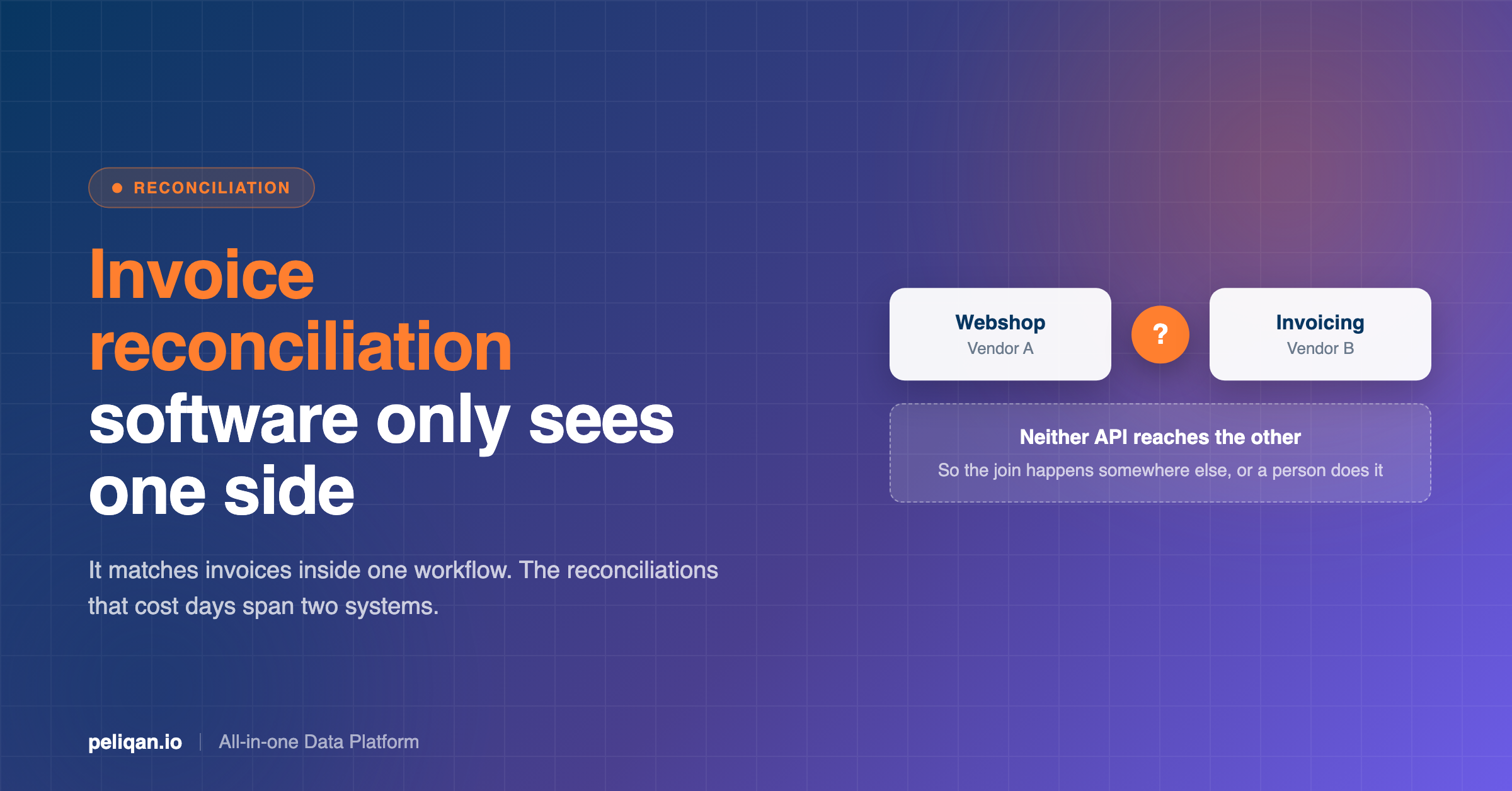
Each of these sees only its own app. A question like “which customers with open deals in HubSpot also have overdue invoices in Xero?” needs data from two apps joined together, which a single connector cannot do on its own. We cover that case further down.
Data and analytics: BigQuery, Supabase, PostHog and data platforms
If your company already has a database or data warehouse, the BigQuery or Supabase apps let ChatGPT query it directly. Product analytics apps such as PostHog and Mixpanel answer questions about usage and funnels.
The directory also lists data integration tools such as Windsor.ai and Coupler.io, which bring data from many marketing and business sources into ChatGPT.
What each ChatGPT plan gets
OpenAI says the plugin directory is available on every plan, but whether you can install and use a given app depends on your plan, workspace, role and region. Custom MCP servers are where the plans really differ.
One more difference matters for company data. On Business, Enterprise and Edu, OpenAI does not use information from apps to train its models by default. On Free, Go, Plus and Pro it may, if the “Improve the model for everyone” setting is on, so check that setting before connecting work accounts to a personal plan.
What ChatGPT connectors do not do well
Connectors work best for finding and summarizing information in one app at a time. They are weaker when a question needs numbers from several apps combined, because each app only searches its own data and ChatGPT has to stitch partial results together.
There are also some practical limits. Deep research can use custom apps, but only to read, not to make changes. Custom MCP servers can only be added on the web, not on mobile. And when a workspace admin approves a custom server, ChatGPT keeps a fixed snapshot of its tools: if the server’s developer changes a tool later, calls can fail until an admin refreshes it.
How to add apps that have no ChatGPT connector
Many business apps are not in the public directory. When we checked in October 2026, we could not find Odoo, Teamleader or AFAS at all, and Exact Online and QuickBooks only through third-party apps. If your app is missing, you can still connect it as a custom MCP server, as long as someone runs one for it.
Who can add a custom MCP server
On Business, only workspace admins and owners can add a custom MCP server and publish it for the team. On Enterprise and Edu, admins can also give selected members permission to add servers, and decide who gets access to each one. On Pro, you can add a server yourself, but ChatGPT only allows read and fetch actions from it. Free, Go and Plus cannot add custom servers.
The steps
In ChatGPT on the web, go to Plugins, select the + button and choose Add custom MCP server. Give it a name, paste the server’s HTTPS address and choose how it signs in, usually OAuth. Tick the box to confirm you understand the risks, then select Create as a plugin and review the tools it finds. On Business and Enterprise, an admin then publishes it so others in the workspace can use it. The full steps are in OpenAI’s guide to connecting custom MCP servers.
Two things often trip people up. ChatGPT only connects to servers on the internet, so a server running on your laptop or private network needs OpenAI’s Secure MCP Tunnel. And if the server’s sign-in does not issue refresh tokens, ChatGPT can lose access when the first login expires, and users have to reconnect. Our ChatGPT MCP guide goes deeper into what breaks in practice.
Example: many business apps through one MCP server
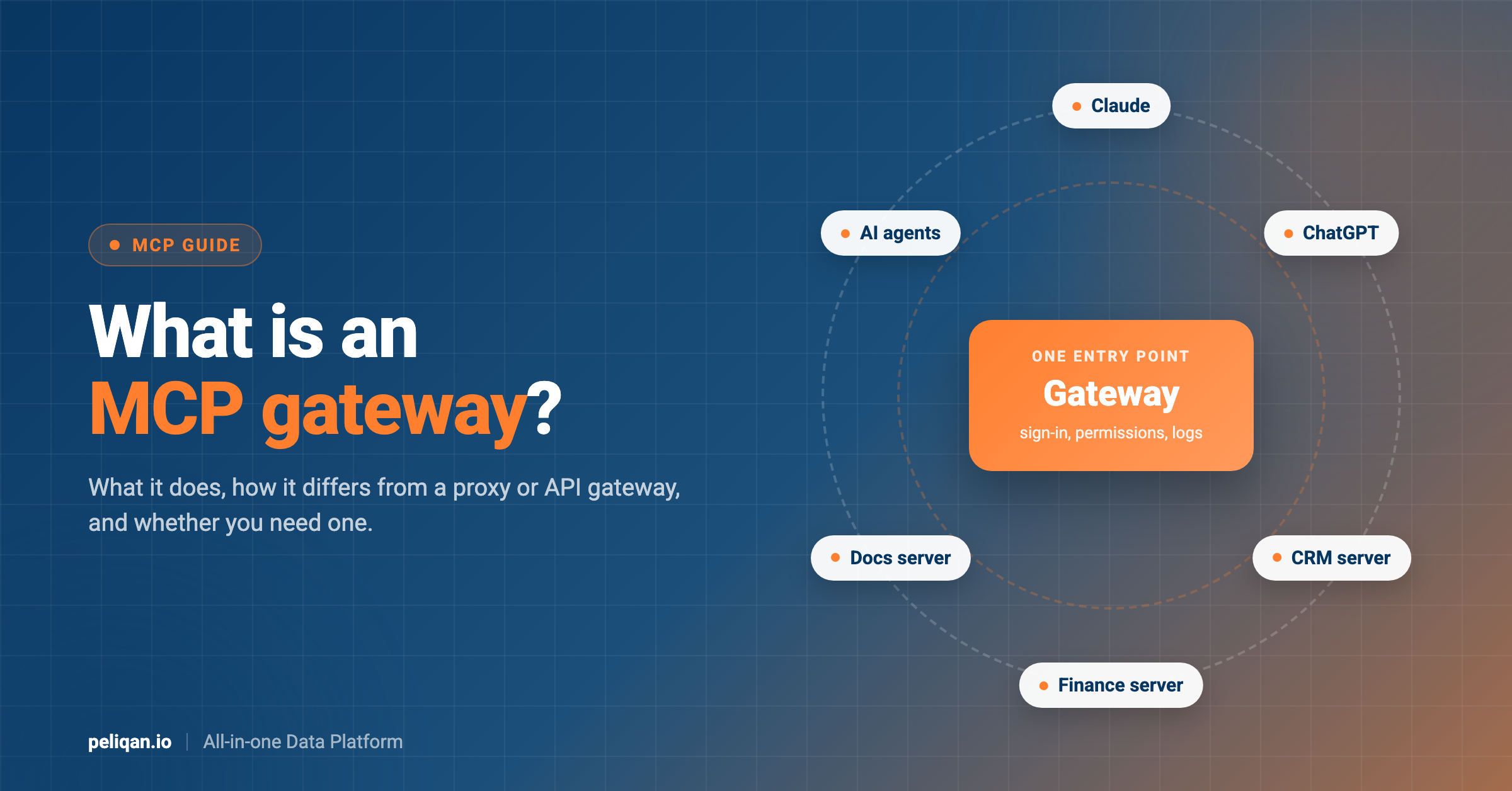
Instead of finding a separate MCP server for every missing app, you can connect one server that covers many of them. Peliqan’s MCP server works this way: you connect your apps in Peliqan once, including ones ChatGPT does not have, such as Odoo, Exact Online, Teamleader and AFAS, and then add Peliqan to ChatGPT as a single custom MCP server.
The setup takes a few minutes. In Peliqan, connect the apps you want to use. In ChatGPT on the web, go to Plugins, select +, add a custom MCP server, paste https://mcp.peliqan.io/mcp as the URL, leave sign-in on OAuth and log in with your Peliqan account. Peliqan’s sign-in supports refresh tokens, so the connection can stay active for long periods; if it ever drops, reconnect it from Settings, then Plugins.
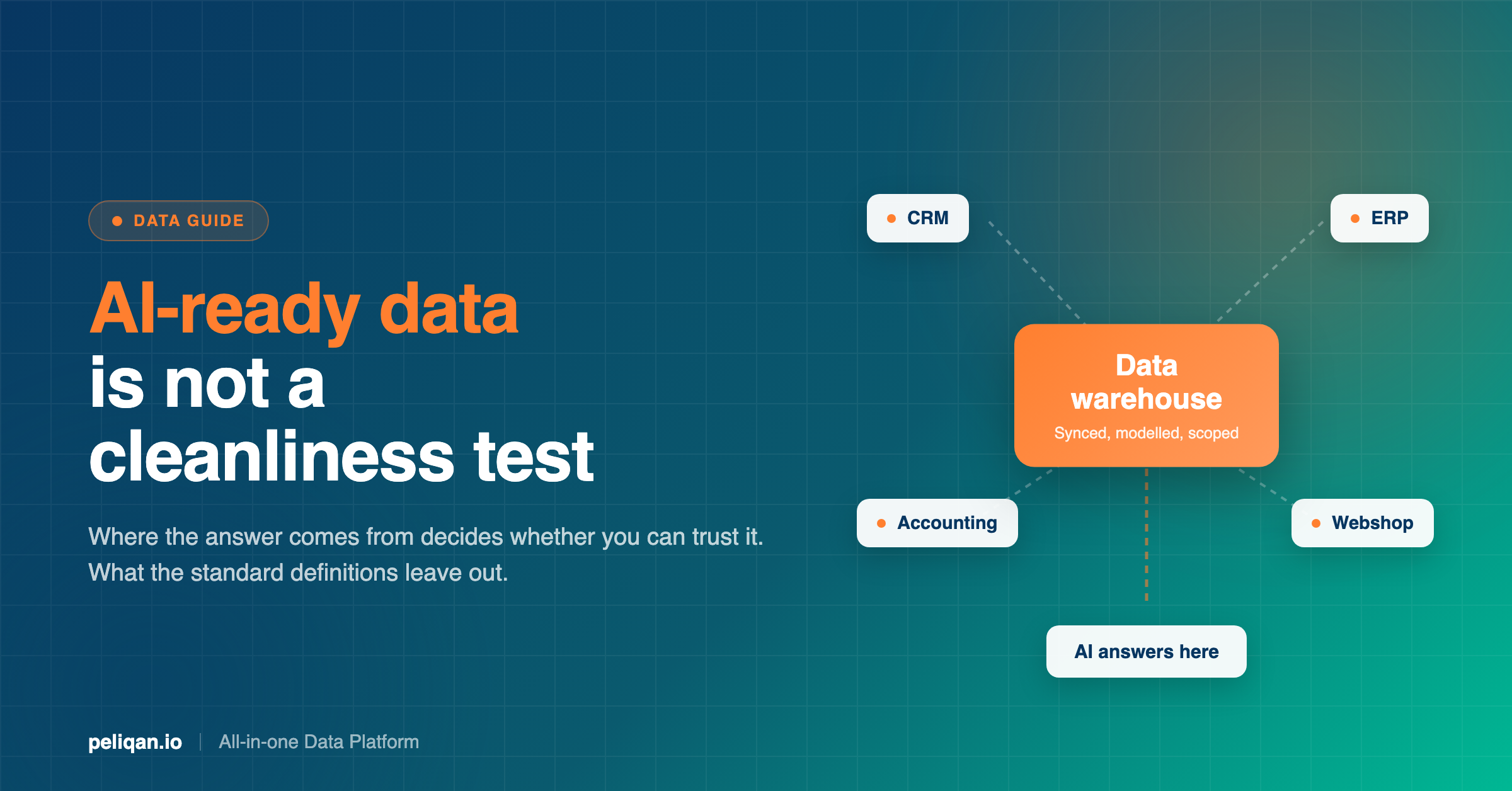
Because Peliqan syncs each app into its built-in data warehouse, ChatGPT’s questions run as SQL on that synced copy. That means one question can combine several apps, such as deals from your CRM with invoices from your accounting tool, and a question does not hit each app’s API every time. Our guide to cross-source MCP queries explains why that join is hard with separate connectors.
When ChatGPT needs to change something, such as creating an invoice or updating a contact, it goes through Peliqan’s writeback, which is on by default and can be switched off per connection. Keep in mind that on a Pro plan ChatGPT only allows read actions from custom servers, so writeback tools will not work there. You can check whether your apps are covered on the Peliqan connectors page.
Are ChatGPT connectors safe?
Connectors are as safe as the permissions you give them. An app can only reach what the connected account can reach, and the permission setting decides whether ChatGPT asks before reading or acting. OpenAI’s help pages are clear that permission settings never grant an app new access; they only change when ChatGPT asks first.
For work data, a managed workspace is the safer choice: admins can turn apps on or off, Enterprise and Edu can limit apps by role, and app data is not used for training by default. Custom MCP servers need more care, because a server you do not trust can send instructions that try to steer ChatGPT, known as prompt injection. Only connect servers from providers you trust, and start with read access. Our MCP security guide covers the main risks.
Why ChatGPT connectors are not showing up
Most of the time, a missing connector comes down to plan, workspace or settings rather than a fault. Work through these checks in order:
If none of these fit, OpenAI’s troubleshooting guide for plugins and apps walks through each error message.
How to choose your first ChatGPT connectors
Start with where your daily questions are answered today. For most people that is their files (Google Drive or SharePoint) and their messages (Outlook or Slack). Add one at a time, use it for a week, and keep the permission on “always ask” until you trust how ChatGPT uses it.
Then add the app behind your most repeated question, such as the CRM for sales teams or GitHub for developers. If your important questions span several business apps, or rely on apps ChatGPT does not cover, that is the point to look at a custom MCP server. If you also use Claude, our list of the best Claude connectors covers the same choices there.
Conclusion
ChatGPT connectors, now called apps, are the quickest way to give ChatGPT access to your files, messages and business tools. The directory covers the big names well, from Google Drive and Slack to HubSpot, Salesforce and Stripe, and connecting one takes a minute.
The limits show up with apps that are not in the directory and with questions that combine several apps. For those, a Business, Enterprise or Edu workspace can add a custom MCP server, and a single server that covers many apps keeps the setup simple. Whatever you connect, start with read access, check the answers, and give ChatGPT more permissions only as you build trust.