




Connecting HubSpot to Power BI lets you turn CRM data into the kind of full-funnel dashboards HubSpot’s built-in reports cannot produce. This guide covers the native options and their limits, why a data warehouse is the more reliable path, and how to connect HubSpot to Power BI step by step so your sales, marketing, and revenue dashboards stay fast and accurate.
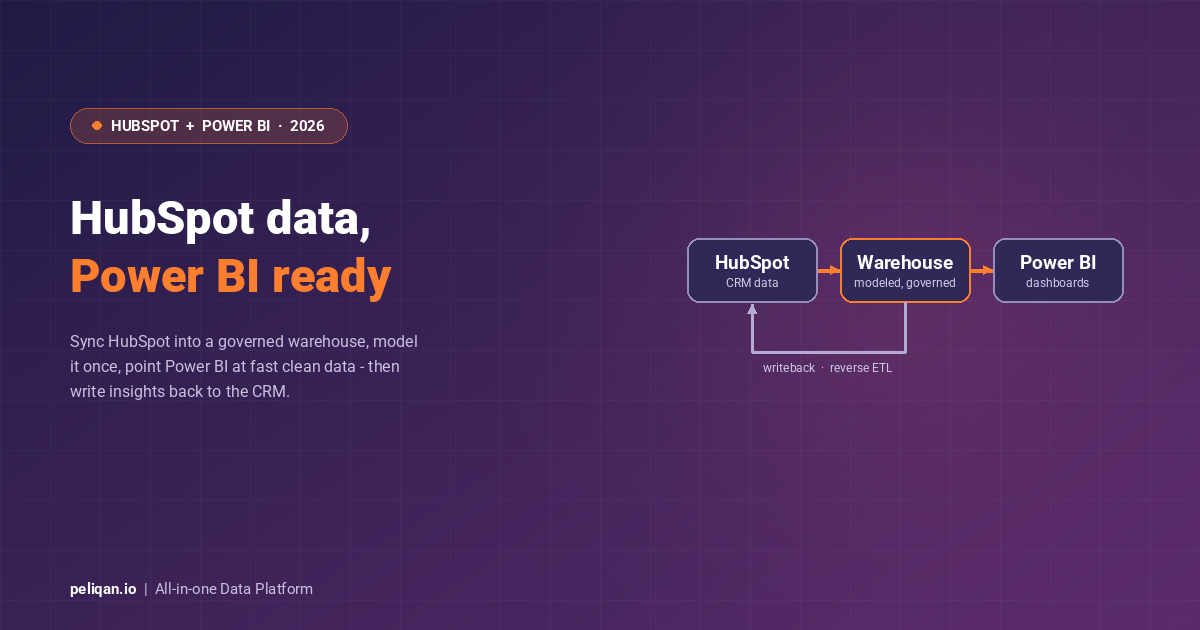
HubSpot is where your contacts, deals, and customer journeys live, and Power BI is the most widely deployed BI tool in Microsoft-centric organizations. Putting the two together sounds simple, but the direct routes have real limits once you move past basic reporting. The reliable pattern in 2026 is to sync HubSpot into a governed data warehouse first, then point Power BI at clean, modeled data. This guide walks through both approaches and shows how to set up the warehouse path using the HubSpot connector.
Why connect HubSpot to Power BI?
HubSpot’s built-in reports are good for day-to-day sales and marketing dashboards, but they hit a ceiling fast. Full-funnel attribution, customer lifetime value, blended pipeline and revenue views, and any report that combines HubSpot with finance or product data all require getting HubSpot data out of HubSpot. Power BI is the natural home for those executive dashboards, especially when the rest of the business already runs on Microsoft. The question is not whether to connect the two, but how to do it so the dashboards stay fast and the numbers stay trustworthy.
The native options, and where they fall short
There are a few direct ways to get HubSpot into Power BI, and each has a trade-off. HubSpot’s marketplace connector and Power BI’s web or API connectors can pull data directly, but they query the live HubSpot API, so large datasets are slow, subject to rate limits, and prone to timeouts during refresh. Manual CSV exports work for a one-off analysis but break the moment you need a scheduled, repeatable dashboard. And connecting Power BI straight to dozens of SaaS APIs means every report rebuilds the same joins and transformations, with no shared, governed source of truth.
The deeper problem is that Power BI works best when fed from a clean, modeled warehouse rather than raw API responses. HubSpot’s data model (associations between contacts, companies, deals, and engagements) needs shaping before it becomes a usable star schema, and doing that transformation work inside Power BI with DAX gets brittle quickly. This is the same trade-off covered in our guide to connecting data to Power BI.
The data warehouse approach
The reliable pattern is to sync HubSpot into a data warehouse, model it there, and connect Power BI to the warehouse. Power BI then reads from a fast, columnar store instead of the live HubSpot API, so refreshes are quick and never hit rate limits. The data is modeled once, centrally, so every report uses the same definitions of a qualified lead or a closed-won deal. And because the warehouse holds your other sources too, you can blend HubSpot with finance, product, and e-commerce data for attribution that HubSpot alone cannot produce. Peliqan provides this as a managed path: a built-in Postgres and Trino warehouse, a managed HubSpot connector, and writeback support for reverse ETL.
How to connect HubSpot to Power BI with Peliqan
1. Connect HubSpot
Authenticate HubSpot through OAuth in a few clicks. Peliqan replicates your data into the built-in warehouse (or your own Snowflake, BigQuery, or Redshift), creating one table per object type (Contacts, Companies, Deals, and so on) with automatic schema detection and incremental syncs on a schedule you set. The full walkthrough is in the HubSpot getting-started guide.
2. Model the data with SQL
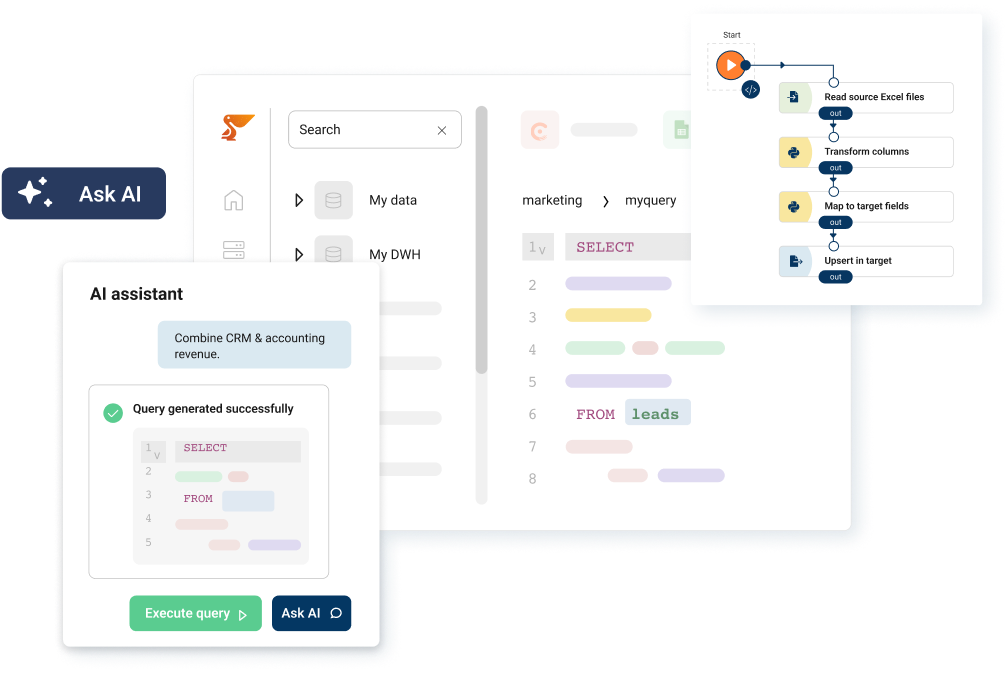
Shape the raw HubSpot tables into report-ready models using SQL or low-code Python, so Power BI receives clean star schemas instead of nested API objects. Doing the transformations in the warehouse keeps your Power BI model simple and your DAX minimal. A typical deal-pipeline model is just a query:
SELECT dealstage,
       COUNT(*)        AS deal_count,
       SUM(amount)     AS pipeline_value
FROM   hubspot.deals
WHERE  is_closed = false
GROUP  BY dealstage
ORDER  BY pipeline_value DESC;
3. Connect Power BI to the warehouse
Point Power BI at the Peliqan warehouse with a standard database connection and your HubSpot tables and models appear, ready for dashboards. Because Power BI reads from the warehouse rather than the HubSpot API, refreshes are fast and reliable even on large CRM datasets. The same steps apply to any BI tool, including Tableau, Looker, and Metabase.
4. Push insights back to HubSpot
Once the data is modeled, you can sync derived values like lead scores, customer health, or account tiers back into HubSpot using reverse ETL, so the insight your dashboards reveal is available to reps inside the CRM, not just in Power BI. This closes the loop between analytics and the systems where work actually happens.
What you can build
With HubSpot modeled in the warehouse, Power BI dashboards become straightforward: pipeline and forecast views by stage, owner, and segment; marketing attribution that ties campaigns to closed revenue; sales activity and conversion-rate tracking across the funnel; and customer lifetime value once you blend HubSpot with billing data. The reporting that used to require exporting spreadsheets and rebuilding pivots becomes a live dashboard that refreshes on its own.
Going further: HubSpot plus your other sources
The real payoff of the warehouse approach is cross-source analysis. True customer acquisition cost needs HubSpot deal and campaign data joined with actual ad spend from your ad platforms and revenue from your accounting system. A customer-360 view needs CRM records joined with product usage and support tickets. Because Peliqan syncs HubSpot alongside 250+ other sources into the same warehouse, Power BI can report on all of it together, something no direct HubSpot-to-Power BI connector can do on its own.
Peliqan is SOC 2 Type II, ISO 27001, GDPR, HIPAA, and CCPA certified, EU-hosted on AWS Frankfurt, with HubSpot credentials encrypted at rest, all transfers over TLS, and custom connectors delivered within 2 weeks. You can review the full HubSpot and Power BI integration details, or browse pricing before you start.
Real-world example: CIC Hospitality
CIC Hospitality unified data from 50+ sources, including CRM and financial systems, into one Peliqan warehouse feeding their reporting. They save 40+ hours per month by automating board reports that were previously built by hand, with every dashboard reading from the same governed layer. Read the case studies.
Conclusion
You can connect HubSpot to Power BI directly, but for anything beyond a basic dashboard, the direct route runs into API limits, slow refreshes, and transformation logic trapped in DAX. Syncing HubSpot into a governed warehouse and pointing Power BI at clean, modeled data fixes all three, and unlocks the cross-source reporting that HubSpot alone cannot deliver. To set it up on your own data, try Peliqan free and connect HubSpot in a few minutes.