




Claude MCP lets Anthropic’s AI assistant read, query, and write back to your business applications – CRMs, ERPs, databases, and 300+ SaaS tools – through the Model Context Protocol. This guide covers what Claude MCP actually does, how to set it up, and why a data warehouse layer between Claude and your live systems changes the game for business teams.
What is Claude MCP?
MCP stands for Model Context Protocol – an open standard created by Anthropic in late 2024 that gives AI assistants like Claude a structured way to interact with external tools and data sources. Think of it as USB-C for AI: one protocol, any application.
Without MCP, Claude is limited to what it was trained on. It can write, reason, and analyze – but it can’t check your actual invoice data, pull a live sales pipeline, or update a record in your ERP. Claude MCP changes that by connecting Claude to the systems where your business data actually lives.
How Claude MCP works
MCP adoption: from experiment to industry standard
When Anthropic open-sourced MCP in November 2024, the ecosystem had a few hundred servers. By April 2026, an independent census by MCP Manager indexed over 17,400 MCP servers across registries, with month-over-month growth still tracking at 18%. MCP SDK downloads hit 97 million per month by March 2026 – a 970x increase in 18 months.
The protocol isn’t just for Claude anymore. ChatGPT (via its Apps SDK), Google Gemini, Cursor, Windsurf, Zed, JetBrains AI Assistant, the Vercel AI SDK, and the OpenAI Agents SDK all support MCP. In January 2026, Anthropic donated MCP governance to the newly established Agentic AI Foundation, cementing it as a vendor-neutral standard.
On the enterprise side, 78% of enterprise AI teams report at least one MCP-backed agent in production, and 67% of CTOs name MCP their default agent-integration standard within 12 months. HubSpot launched the first native CRM connector for Claude, Oracle built an official MCP server for NetSuite, and Sage shipped one for Sage Intacct – all in Q1 2026.
What Claude can actually do with MCP
Once connected via MCP, Claude stops being a chatbot that guesses at your data and becomes an assistant that works with it. The capabilities fall into three categories.
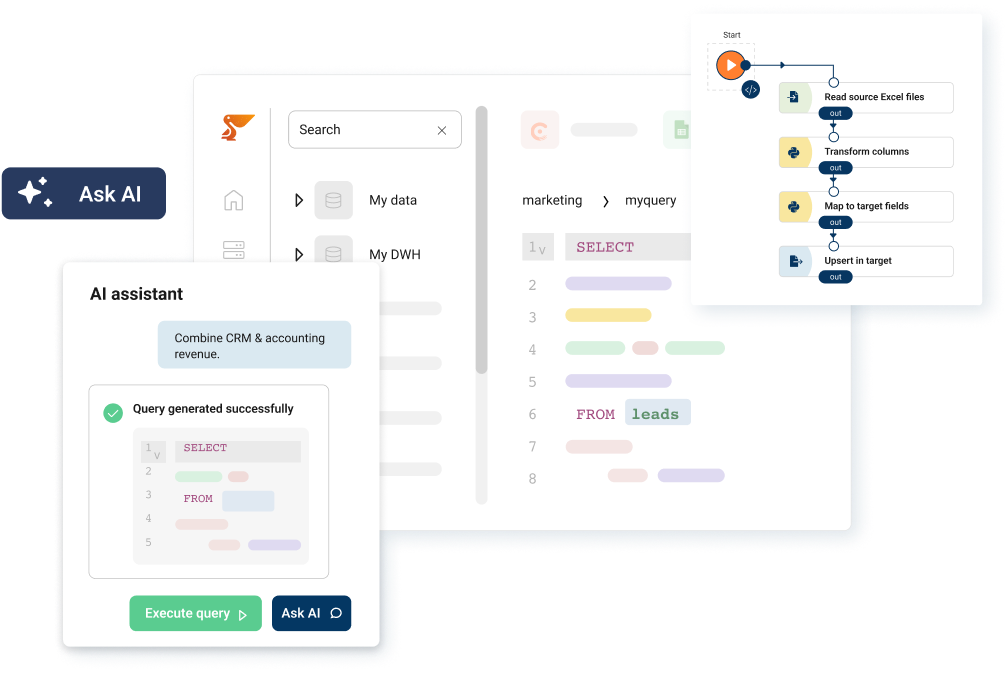
Read and query. Ask Claude “show me all overdue invoices from Exact Online this quarter” and it translates your question into a SQL query, runs it against your data, and returns the answer. No exporting to CSV, no logging into dashboards.
Write and update. Claude MCP isn’t read-only. You can ask it to create a new contact in your CRM, update a deal stage in Teamleader, or post a journal entry in your accounting system. Every action requires your explicit approval – Claude asks before it writes.
Cross-source analysis. This is where it gets interesting. When your data from multiple apps lands in the same place, Claude can join Exact Online invoices with Teamleader project hours to calculate actual profitability per client – a query that would take hours of manual spreadsheet work.
Important: Claude MCP is not autonomous access
Every tool call Claude makes through MCP requires your permission. When Claude wants to query your database or update a record, it shows you exactly what it plans to do and waits for approval. You stay in full control of what your AI can see and do.
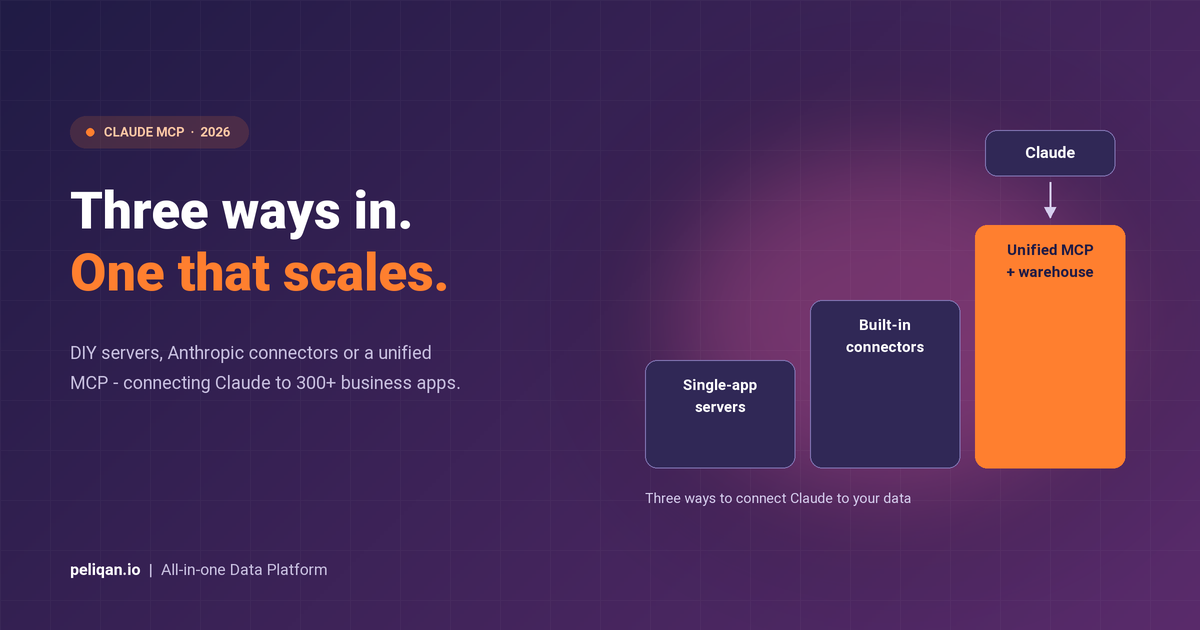
Three ways to connect Claude to your business data
Not every Claude MCP setup is the same. The approach you choose depends on how many data sources you need, whether you want cross-source queries, and how much engineering effort you’re willing to invest.
1. Single-app MCP servers (DIY)
The most common starting point. You install an open-source MCP server for one specific tool – say, a Postgres database or a GitHub repo – and configure it in Claude Desktop’s JSON config file. Anthropic maintains a handful of reference servers, and community-built options cover hundreds of apps.
This works well for developers who need Claude to interact with one or two tools. The limitation is obvious: each server handles one app. If you need data from five different systems, you’re managing five separate servers, five authentication flows, and zero ability to join data across them.
2. Anthropic’s built-in connectors
Anthropic and its partners have pre-built connectors for some major platforms – Microsoft 365 (Outlook, SharePoint, OneDrive, Teams), Google Workspace, and a growing list of SaaS tools. These are available directly in Claude Desktop under Settings and Extensions – and when a connector is missing, you can build your own MCP server.
The advantage is zero setup. The limitation is coverage – these connectors focus on productivity suites, not the EU-specific ERPs, accounting tools, and vertical SaaS apps that many businesses depend on.
3. Unified MCP server with a data warehouse layer
Instead of one MCP server per app, you connect all your business applications to a central data warehouse, then expose that warehouse to Claude through a single MCP server. Claude queries the warehouse – not your live systems directly.
This is the approach that scales. Your AI never hits API rate limits on your production ERP. Cross-source joins become trivial because all data lives in the same queryable layer. And you get governance, lineage, and access controls built in.
How to set up Claude MCP: Desktop, Code, and remote
There are three ways to connect an MCP server to Claude, each suited to different use cases. The right choice depends on whether you’re a business user, a developer, or deploying for a team.
Claude Desktop: local MCP servers
Claude Desktop is the most common starting point. You define MCP servers in a JSON config file, and Claude launches them as local processes when the app starts. The config file lives at ~/Library/Application Support/Claude/claude_desktop_config.json on macOS or %APPDATA%\Claude\claude_desktop_config.json on Windows.
A basic config looks like this:
{
  "mcpServers": {
    "my-server": {
      "command": "npx",
      "args": ["-y", "@modelcontextprotocol/server-postgres",
               "postgresql://localhost/mydb"]
    }
  }
}
After saving the file, quit Claude Desktop completely and relaunch. If the server loaded correctly, you’ll see a tools icon (hammer) in the chat input area. Click it to see which tools are available. Anthropic’s official setup guide covers the full flow.
Desktop Extensions: one-click install
If editing JSON files isn’t your thing, Claude Desktop now supports Desktop Extensions – packaged MCP servers you install with a single click. Go to Settings, then Extensions, and browse the directory of Anthropic-reviewed tools. Extensions use the .mcpb file format (formerly .dxt) and handle all configuration automatically. No Node.js, no PATH issues, no config editing.
Claude Code: MCP for developers
Claude Code (Anthropic’s CLI tool for agentic coding) has its own MCP integration. Connecting a server takes one command:
claude mcp add my-database -- npx -y @modelcontextprotocol/server-postgres postgresql://localhost/mydb
Claude Code also supports a Tool Search feature that dynamically loads only the tool definitions needed for each task – cutting context consumption by up to 85% when you have many MCP servers connected. The Claude Code MCP docs cover advanced configuration.
Remote MCP servers: for teams
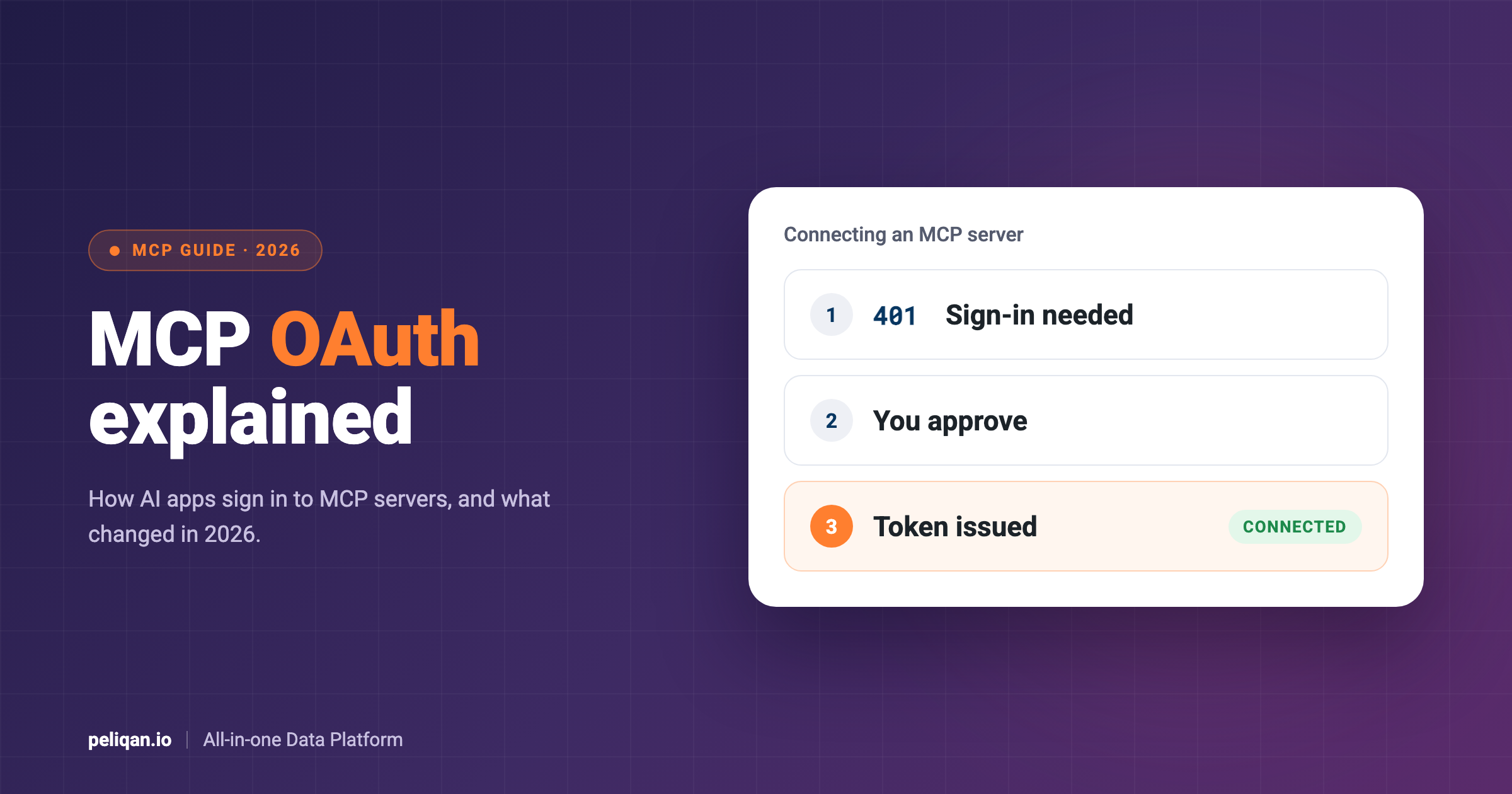
Local servers work for individual use. For teams, you want remote MCP servers that multiple users can connect to. Claude Desktop supports this via Settings, then Connectors, then Add Custom Connector. Remote servers use the Streamable HTTP transport (which replaced SSE as of the 2025-03-26 spec) with OAuth authentication. This is available on Pro, Max, Team, and Enterprise plans.
MCP transport protocols explained
Why single-connector MCP servers break down
Most Claude MCP tutorials stop at “install a server, configure JSON, restart Claude.” That works for a demo. It falls apart in production for three reasons.
API rate limits. When Claude queries your CRM or ERP directly via MCP, every question is an API call against your live system. Run a complex analysis and you might hit rate limits that also affect your team’s daily work. A finance team running end-of-month reports shouldn’t compete with an AI assistant for API quota.
No cross-source queries. A Salesforce MCP server can’t join data with your Exact Online MCP server. If a business question spans two systems – “which customers with overdue invoices also have open support tickets?” – you’re back to exporting CSVs and doing manual lookups.
Security gaps. Each community-built MCP server has its own security posture. Some store credentials in plain text config files. Few offer audit trails, role-based access, or SOC 2 compliance. For enterprise data, that’s a non-starter.
The hidden cost of DIY MCP
The data warehouse approach to Claude MCP
The pattern that solves these problems is straightforward: sync your business applications into a data warehouse, then point Claude at the warehouse through a single MCP server.
This is exactly how Peliqan’s MCP server works. Peliqan connects to 300+ business applications – Exact Online, AFAS, Teamleader, Salesforce, HubSpot, Shopify, and more – and syncs all data into a built-in Postgres + Trino warehouse. The MCP server then gives Claude (or Cursor, ChatGPT, n8n, or any MCP client) governed access to that warehouse.
What changes with a warehouse layer
The install is a single pip command. You add your Peliqan API token to Claude Desktop’s config, restart, and start querying your business data in natural language. No per-connector setup, no custom API code.
Claude MCP: single-app servers vs. unified platform
Step-by-step: connect Claude to 300+ apps
Here’s how to go from zero to querying your business data in Claude using Peliqan’s MCP server.
1. Connect your apps in Peliqan
Sign up at peliqan.io and authorize the business applications you want Claude to access. Peliqan handles OAuth flows and API keys. Data syncs into the built-in warehouse automatically on a schedule you control – no pipelines to build.
2. Install the MCP server
Open your terminal and run:
pip install mcp-server-peliqan
3. Configure Claude Desktop
Open Claude Desktop, go to Settings, then Developer, and click Edit Config. Add this block to your claude_desktop_config.json:
{
  "mcpServers": {
    "peliqan": {
      "command": "python",
      "args": ["-m", "mcp_server_peliqan"],
      "env": {
        "peliqan_account_id": "YOUR_ACCOUNT_ID",
        "peliqan_api_token": "YOUR_API_TOKEN"
      }
    }
  }
}
Save the file and restart Claude Desktop. You’ll see the tools icon appear in the bottom corner – that means Claude has detected your MCP server and is ready to query across all connected sources.
4. Start querying
Ask Claude anything about your business data in plain English:
Example prompts for Claude MCP
- Finance: “Show me revenue by customer for Q1 and flag anyone with invoices older than 60 days”
- Sales: “Which Teamleader deals have been stuck in the same stage for more than 14 days?”
- HR: “Pull headcount by department from AFAS and show expiring contracts this quarter”
- Cross-source: “Join Exact Online invoices with Teamleader project hours to calculate profitability per client”
Real-world use cases for Claude MCP
The Claude MCP pattern is already being used across industries. Here are the most common use cases we see in production.
Financial reporting assistant
Finance teams connect their accounting system (Exact Online, AFAS, Xero) to Claude via MCP and ask questions like “summarize AR aging by customer segment” or “compare this quarter’s revenue to the same period last year.” What used to require an analyst pulling data into Excel now takes a single prompt.
Sales operations agent
Sales leaders query their CRM through Claude to find stalled deals, enrich prospect data, and even update deal stages – all from a conversation. With writeback support, Claude doesn’t just report on the pipeline; it helps manage it.
Cross-app business intelligence
This is where the data warehouse approach shines. Joining ERP invoices with CRM project hours to calculate actual profitability per client is impossible when each MCP server is siloed. With a unified warehouse, it’s a single natural-language question.
Real-world example: CIC Hospitality
CIC Hospitality saves 40+ hours per month by automating board reports across 50+ data sources using Peliqan’s unified data layer – the same infrastructure that now powers MCP access for AI assistants. Read the full case study.
Claude MCP for EU business applications
Most Claude MCP guides focus on US-centric tools – Salesforce, HubSpot, Stripe. But European businesses run on a different stack: Exact Online for accounting, AFAS for HR and payroll, Teamleader for CRM and project management, Yuki for bookkeeping, and Twinfield for financial reporting.
Anthropic’s built-in connectors don’t cover these. Community MCP servers for EU ERPs barely exist. This is a gap that Peliqan was built to fill – it has native connectors for 300+ applications, with deep coverage of the EU business software landscape – and when a tool is missing, custom connectors are built on a 2-week SLA.
Peliqan maintains connector-specific MCP server repos on GitHub for the most popular EU applications: Exact Online, Teamleader, AFAS, Odoo, and PowerOffice – each with full read and write capabilities.
This EU-first approach is already in production. Rezolv, an Odoo partner, uses Peliqan to connect legacy ERP systems with Odoo via automated data pipelines – the same data infrastructure that Peliqan’s MCP server exposes to AI assistants like Claude.
Security and governance for Claude MCP
Connecting an AI assistant to your business data raises legitimate security questions. Who controls what Claude can access? Where does the data go? Is there an audit trail?
With Peliqan’s approach, the answers are built into the architecture. Claude queries a read-only warehouse copy – it never touches your live production systems. Role-based permissions control exactly which tables and fields each MCP connection can access. Every query is logged with full data lineage.
Peliqan is SOC 2 Type II and ISO 27001 certified, GDPR, HIPAA and CCPA compliant, and EU-hosted on AWS Frankfurt. For regulated industries – finance, healthcare, professional services – this is the difference between a proof of concept and a production deployment.
Troubleshooting Claude MCP
MCP setup is straightforward, but a few issues come up repeatedly. Here’s what to check when things don’t work.
Server not appearing in Claude. The most common cause is a typo in the config file path or a missing restart. After editing claude_desktop_config.json, you need to fully quit Claude Desktop (not just close the window) and relaunch. On macOS, right-click the dock icon and choose Quit. Also verify that the command (node, npx, python) is in your system PATH by running which node or which python in your terminal.
JSON syntax errors. A single trailing comma or missing bracket will silently break the config. Run your config file through a JSON validator (search “JSON validator” online) before restarting Claude. Common mistakes include a comma after the last server entry and mismatched braces.
Permission denied errors. On macOS, ensure your user has read/write access to the files your MCP server needs. On Windows, try running Claude Desktop as Administrator. If your server needs API keys, make sure they’re set either as environment variables in the config’s "env" block or in a .env file that your server loads.
Server crashes on startup. Check the MCP logs for error details. On macOS, look in ~/Library/Logs/Claude/ for files starting with mcp. On Windows, check %APPDATA%\Claude\Logs\. Enable Developer Mode in Claude Desktop (Settings, then Developer) for more verbose logging.
Node.js version issues. Some MCP servers require Node.js 18 or higher. Check your version with node --version and update at nodejs.org if needed. Python-based servers typically need Python 3.10+.
How to decide which Claude MCP approach is right for you
Quick decision framework
- Single dev tool (GitHub, Postgres): A standalone open-source MCP server is fine. Low stakes, simple setup.
- One SaaS app (Google Workspace, Slack): Check if Anthropic has a built-in connector first. If yes, use it.
- Multiple business apps (ERP + CRM + accounting): You need a data warehouse layer. Peliqan gives you the warehouse, the connectors, and the MCP server in one platform.
- EU-specific tools (Exact Online, AFAS, Teamleader): Peliqan is the only MCP solution with native connectors for the EU business software stack.
Getting started with Claude MCP
Claude MCP is the bridge between conversational AI and your actual business data. The protocol is mature, the ecosystem is growing fast, and the agentic data use cases are already in production across finance, sales, HR, and operations teams.
If you’re connecting one or two developer tools, a standalone MCP server gets the job done. But if you’re serious about giving Claude access to your business applications – with cross-source queries, writeback, governance, and EU connector coverage – the data warehouse approach is the one that scales.
Peliqan’s MCP server connects Claude to 300+ business apps through a single endpoint, backed by a built-in data warehouse, reverse ETL, and SOC 2 Type II certification. Install it in minutes with pip install mcp-server-peliqan and start querying your data in natural language.