

Claude for Excel is Anthropic’s add-in that puts Claude in a sidebar inside your spreadsheet. It can explain formulas, change assumptions, fix errors and build models in the workbook you have open. This guide covers what it does and which plans include it. It also explains how to install it, where it falls short, and how to give it live numbers from your business apps.
The short answer
Claude for Excel is an Excel add-in from Anthropic. You install it from Microsoft AppSource, sign in with your Claude account and chat with Claude in a sidebar. Claude then reads the open workbook, answers with links to the exact cells it used, and makes changes you can review.
The add-in became generally available on 7 May 2026, together with Claude for PowerPoint and Word. At the same time, Claude for Outlook joined in beta. All four now sit under the name Claude for Microsoft 365, and one conversation can move between them.
However, you need a paid Claude plan: Pro, Max, Team or Enterprise. The add-in runs in Excel on the web, on Windows with a Microsoft 365 subscription, and on recent Mac versions.
What Claude for Excel can do
Claude for Excel works on the workbook in front of you. So it helps most with the slow parts of spreadsheet work. For example, it can explain a model someone else built, test a change or find the cause of an error.
First, it explains models. Ask where a number comes from, and Claude walks through the formulas behind it. Each answer includes cell-level citations, so you can click straight to the cells it used.
Second, it updates assumptions safely. For example, you can ask it to change the discount rate to 8%. Claude then edits the input and leaves the formulas intact, so every dependent cell recalculates as normal.
Third, it builds and fills models. You can describe a model in plain words or point Claude at an existing template. It then writes real formulas across several tabs instead of pasting fixed numbers.
Example prompts to try
The table below shows what each type of request looks like in practice.
It also handles everyday Excel work, such as filters, pivot tables and conditional formatting. Finally, Claude for Excel shares context with the other Microsoft 365 add-ins. For instance, you can build the analysis in Excel. Then, in the same conversation, you can ask Claude to turn it into a PowerPoint deck.
How to install Claude for Excel
Overall, installing takes a few minutes. First, open the Claude for Microsoft 365 listing on Microsoft AppSource and select Get it now. Next, open Excel and start the add-in from Home, Add-ins on Windows, or from Tools, Add-ins on a Mac. Finally, sign in with your Claude account. Anthropic’s Claude for Excel guide lists every step.
On Team and Enterprise plans, an admin can also deploy the add-in to everyone through the Microsoft 365 Admin Center. In addition, some companies route AI traffic through Amazon Bedrock, Google Cloud Vertex AI or Azure AI Foundry. They can connect the add-in there instead, without individual Claude accounts.
Not every copy of Excel can run it, though. The table below shows which versions the add-in supports, based on Anthropic’s documentation.
What about Excel 2021 or 2024? In fact, Anthropic lists Excel on Windows only with a Microsoft 365 subscription. So a one-time purchase of Excel 2021 or 2024 is not on the supported list.
Is Claude for Excel free?
No. Claude for Excel needs a paid Claude plan: Pro, Max, Team or Enterprise. The Free plan does not include it. However, there is no separate price for the add-in. Instead, your work in Excel counts toward the same usage limits as the rest of your Claude plan.
The add-in also manages long conversations for you. When a chat gets long, the add-in compacts it automatically so you do not run out of context. Still, a heavy modelling session uses up your plan’s allowance faster than a short chat.
The add-in also offers a shorter list of models than claude.ai. Anthropic includes only the Claude models that work best for Office tasks, and your organization’s model settings apply too.
Limits and risks
Claude for Excel is useful, but Anthropic is clear about where it should not work alone. Anthropic does not recommend it for final client deliverables without a human review, or for audit-critical calculations without a check. Also, it does not support Excel data tables, macros or VBA.
Above all, prompt injection deserves a closer look. Anthropic warns that files from outside sources can contain hidden instructions. Such instructions could push Claude to extract data, change records or delete things. For that reason, Claude asks you to confirm risky operations first, so read those prompts carefully.
On data handling, Anthropic deletes inputs and outputs on its side within 30 days, with some exceptions in its policy. Meanwhile, activity in the add-in does not appear in Enterprise audit logs, although the Compliance API covers it.
Claude for Excel vs Copilot in Excel
Microsoft’s Copilot in Excel is the obvious comparison, and the two overlap more than most people expect. In fact, Copilot in Excel can use Claude models too. Its model switcher offers both Claude and GPT models. However, the switcher needs a commercial Microsoft Copilot subscription or Microsoft 365 Premium. Business customers also need an admin to allow Anthropic as a sub-processor first, as Microsoft’s Copilot in Excel FAQ explains.
So which one is better? Mostly, it depends on what you already pay for. If your company already has Microsoft 365 Copilot, Copilot in Excel is already there. On the other hand, your team may already work in Claude every day. In that case, Claude for Excel keeps the same account, skills and connectors across Claude and Office. Either way, both tools work best on clean, current data.
Getting live business data into Claude for Excel
Claude for Excel can only work with what it can see. That means the open workbook, files you attach and the connectors you turn on. Anthropic’s built-in connectors focus on financial market data, such as S&P Global, LSEG and Daloopa. Your own revenue, invoices and pipeline, however, live in your CRM and accounting software.
So someone usually exports those numbers by hand first. As a result, Claude ends up analysing last week’s export, and every refresh means another round of copying and pasting. Worse, each person ends up with a different version of the numbers. That is exactly the problem a single source of truth solves.
Sync your app data into Excel with Peliqan
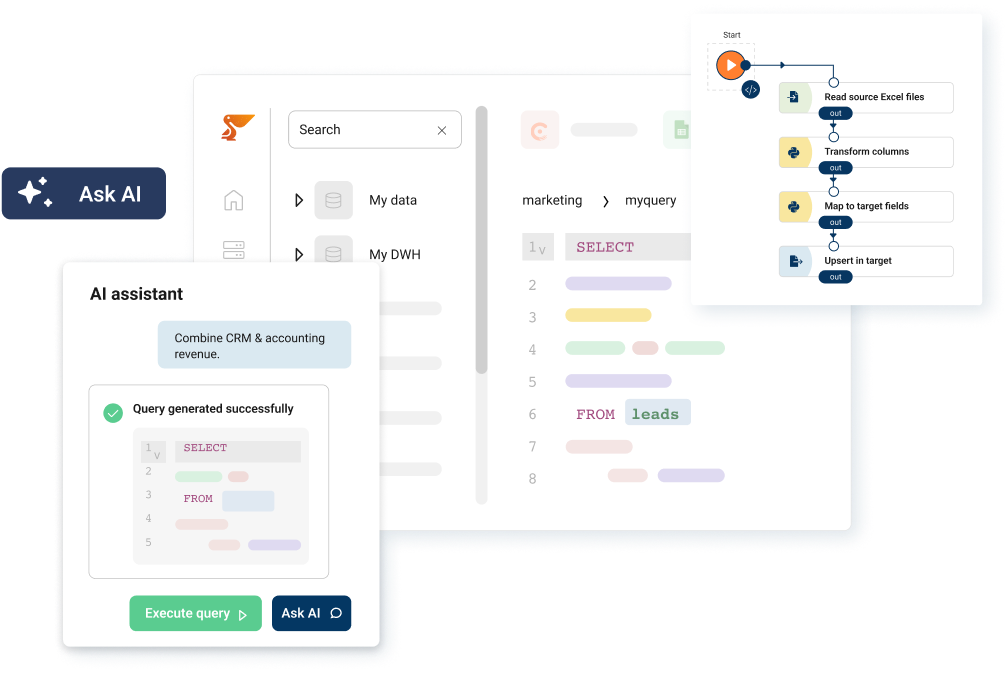
The Peliqan Excel add-in removes that export step. Peliqan connects to 300+ business apps and databases and syncs them into a data warehouse. There, you can join them with SQL. The add-in then pulls any Peliqan table or query into a sheet. It works in Excel on Windows, Mac and the web, and you install it from Microsoft AppSource as well.
Each time you click Sync data, the sheet fills with the latest data. Better still, the add-in remembers which table belongs to which sheet. So Sync all sheets refreshes the whole workbook in one click. Because each sync overwrites its data sheet, keep your reports on separate sheets that look up values from the data sheets.
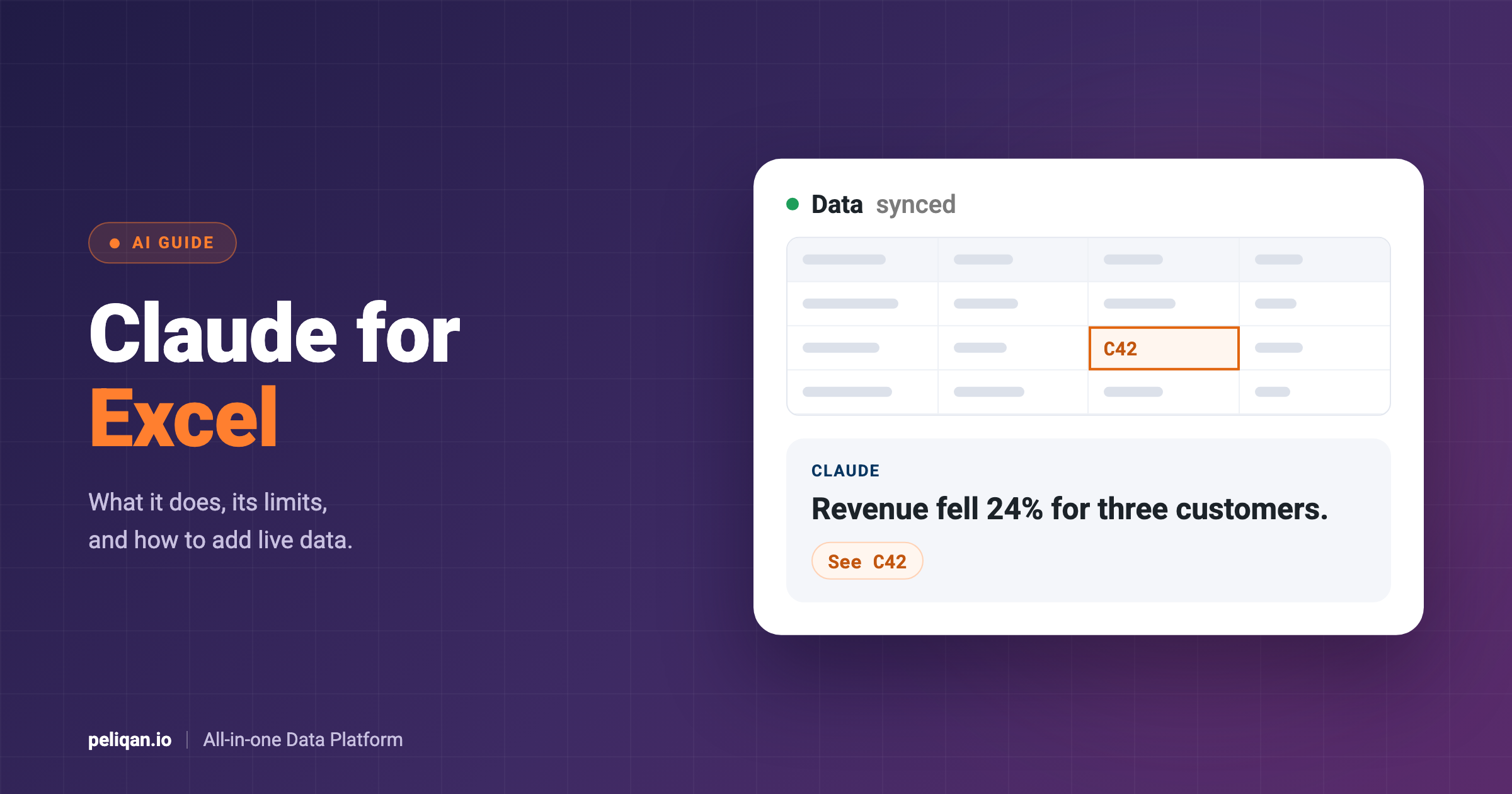
Then Claude takes over. For example, say you want monthly revenue by customer. In Peliqan, you join paid invoices from your accounting system with account owners from your CRM in one query. Next, you sync that query into a sheet called Data. Finally, you ask Claude to work from the Data sheet, for instance: “Build a monthly revenue summary by customer and account owner. Flag customers whose revenue fell by more than 20%.”
Claude’s answer then points to the exact cells. As a result, you can trace every number back to the synced data.
On Windows, you can also reach the Peliqan data warehouse through ODBC with MS Query or Power Query. However, that route does not work on a Mac. The same synced data can also feed a KPI dashboard, so Excel and your dashboards show the same numbers.
Custom connectors in Claude for Excel
Claude for Excel also supports custom connectors: remote MCP servers that you add in your Claude settings. These let Claude fetch information from other systems while you work in the sidebar. Custom connectors need a paid Claude plan. On Team and Enterprise plans, an owner may also need to allow them first. Anthropic also advises you to review any custom connector before you turn it on, because it can introduce security risks.
Outside Excel, Peliqan’s MCP server gives Claude on the web and on the desktop the same synced business data. There, each question runs as SQL on the data warehouse. So Claude can join your CRM, accounting and other apps in one answer.
Skills in Claude for Excel
Likewise, skills work in Excel. Any skill you turn on in your Claude settings is available in the add-in. Claude then applies it whenever it fits the task. You can also type / in the sidebar to pick a skill directly. For example, a skill can hold your company’s formatting rules or the steps for a monthly close review. Our guide to Claude skills explains how to write one.
In addition, the add-in has its own Instructions field under Settings. Use it for preferences such as number formats or currency. Those preferences then apply to every conversation in Excel, but not in PowerPoint or Word.
Conclusion
In short, Claude for Excel is a strong assistant for the slow parts of spreadsheet work. It reads other people’s models, tests scenarios, fixes errors and builds first drafts. It needs a paid Claude plan, runs only on modern Excel, and still needs a human check on anything important.
Its answers are only as good as the data in the workbook, though. So pair it with a reliable way to bring in live numbers from your apps, such as Peliqan’s add-in. That way, Claude spends its time on analysis instead of on last week’s export.