

A tool answer used to be text. With MCP Apps, an AI app such as Claude or ChatGPT can instead show a table you sort or a chart you click, right in the chat. This guide explains what MCP Apps are, how they work, which AI apps support them and how to build one. It also covers the part most guides skip: how to share what you found with your team.
The short answer
MCP Apps are MCP tools that return an interactive screen as well as data. The AI app shows that screen inside the conversation, so you can work with the result directly instead of asking follow-up questions.
The standard went live on 26 January 2026 as the first official extension of the Model Context Protocol (MCP). It builds on earlier work from MCP-UI and the OpenAI Apps SDK, so one app can work in several AI apps. Claude, ChatGPT, Microsoft 365 Copilot, VS Code GitHub Copilot and Cursor are among the apps that support it.
What are MCP Apps?
A normal MCP tool returns text or data, and the AI then writes its answer from that. An MCP App adds a screen to the tool: a small web page that the AI app renders in the chat. For example, that page can be a chart, a table, a form or a document viewer.
The official name of the extension is io.modelcontextprotocol/ui. Before it existed, MCP-UI and the OpenAI Apps SDK each offered their own way to show screens in a chat. The MCP project then worked with OpenAI and the MCP-UI team on one shared, open standard, as the MCP Apps launch post explains. As a result, developers build one app instead of one per AI client.
Why a text answer is not always enough
Text works well for a short answer. However, business questions often return far more than a few lines. For instance, ask “which invoices are overdue?” and you may get 300 rows as text. Then every follow-up, such as “only last month”, “sort by amount” or “show customer X”, is another prompt and another wait.
With an MCP App, the same answer arrives as a table you sort and filter yourself. The AI still knows what you did, because the screen can update its context. So when you then ask “why is this customer so late?”, it knows which rows you were looking at.
How MCP Apps work
Under the hood, an MCP App combines two things the protocol already had: a tool and a resource. Overall, the flow has four steps.
First, the tool says which screen it uses. Its description carries a reference to a ui:// resource in a field called _meta.ui.resourceUri. Next, the AI app fetches that screen from the MCP server, often before the tool is even called. Generally, the screen is an HTML page with its scripts bundled in.
Then the AI app shows the screen in a sealed-off frame in the chat (a sandboxed iframe). Finally, screen and chat talk to each other through messages (JSON-RPC over postMessage). That way, the screen can call tools on the server, send a message to the chat or update what the AI knows.
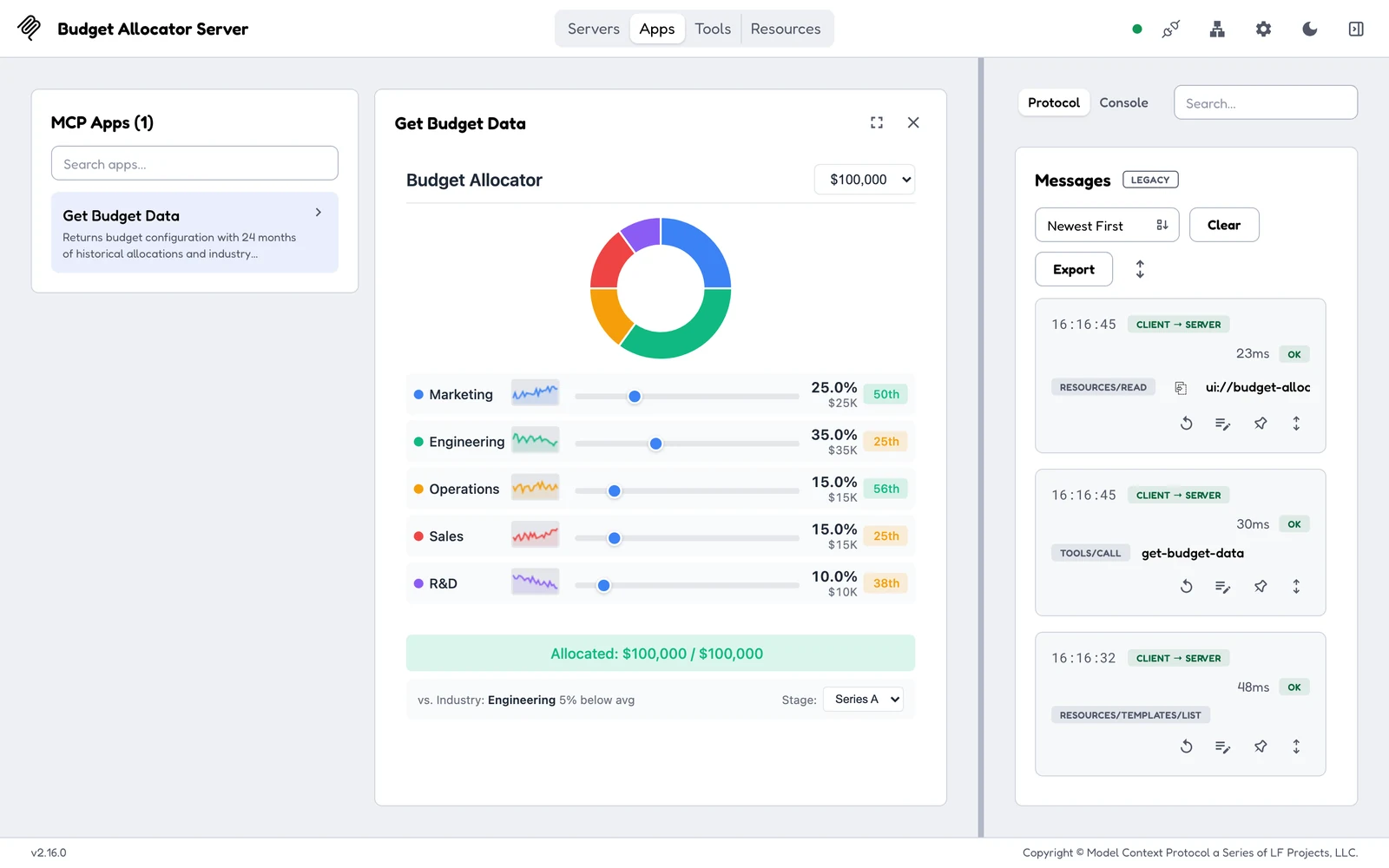
The official budget allocator example running as an MCP App in MCP Inspector. The Protocol panel shows the tool call and the ui:// screen the host fetched.
You can also see both halves in the screenshot above. The example’s tool, get-budget-data, points to ui://budget-allocator/mcp-app.html. When the host runs it, the message log shows a tools/call for the data and a resources/read for the screen.
Which AI apps support MCP Apps
Support is growing fast, but it is not universal yet. The table below follows the official MCP extension support matrix, checked in November 2026.
Note that support is opt-in on both sides: the server must offer a screen, and the AI app must choose to show it. The details also still differ between AI apps, so test your app in each one you plan to use.
MCP Apps vs plain tool results vs a web app
An MCP App sits between a plain tool answer and a separate web app. The table below compares the three on the points that matter most.
In short, an MCP App suits one person exploring something right now, whereas a web app or dashboard suits a team that needs the same view every day.
When to use an MCP App
The official guidance lists five good fits, and each has an obvious business version.
Exploring data. For example, a finance user asks for revenue by region and gets a chart to drill into. Forms with many options. A setup with dozens of related choices becomes one form with defaults, rather than ten questions in a row.
Reviewing documents. An invoice PDF opens in a viewer with the relevant lines highlighted. Live monitoring. A sync or system status screen updates on its own while you keep chatting. Step-by-step approvals. An expense or quote queue shows one item at a time, with approve and reject buttons.
On the other hand, a normal web app is simpler when many people use the same screen every day.
How to build an MCP App, step by step
The official SDK keeps the build small. The snippets below follow the TypeScript quickstart in the ext-apps repository, shortened for reading.
1. Install the packages. You need the MCP server SDK and the apps extension:
npm install @modelcontextprotocol/server @modelcontextprotocol/ext-apps zod
2. Register a tool that points to a screen. The _meta.ui.resourceUri field links the tool to its screen:
const resourceUri = "ui://get-time/mcp-app.html";

registerAppTool(server, "get-time", {
  title: "Get Time",
  description: "Returns the current server time.",
  inputSchema: z.object({}),
  _meta: { ui: { resourceUri } },
}, async () => ({
  content: [{ type: "text", text: new Date().toISOString() }],
}));
3. Register the screen. The resource returns the HTML page, bundled into one file:
registerAppResource(server, resourceUri, resourceUri,
  { mimeType: RESOURCE_MIME_TYPE },
  async () => ({
    contents: [{ uri: resourceUri, mimeType: RESOURCE_MIME_TYPE, text: html }],
  }));
Connect the screen and test it
4. Connect the screen. Inside the page, the App class receives the tool result and can then ask the server for fresh data:
import { App } from "@modelcontextprotocol/ext-apps";

const app = new App({ name: "Get Time App", version: "1.0.0" });
app.ontoolresult = (result) => { /* show the result */ };
const fresh = await app.callServerTool({ name: "get-time", arguments: {} });
app.connect();
5. Test it. MCP Inspector, for instance, shows MCP Apps in its own Apps tab. To try it, use one of the official examples, which the project publishes on npm:
npx @modelcontextprotocol/inspector -- npx -y @modelcontextprotocol/server-budget-allocator --stdio
Our guide to MCP Inspector covers the rest of the tool. After that, test your app in each AI app your users have, because their support still differs.
Security, and what is still hard
The MCP project designed MCP Apps with security in mind. The screen runs in a sandboxed frame, so it cannot read the page around it, steal cookies or reach the user’s other data. It can only load outside content from the sources it declares, and the AI app decides which tools it may call. Every message also passes through a channel that the AI app can log.
Even so, an MCP App is only as safe as the server behind it. So check an MCP server before you connect it, as our article on MCP security explains.
A few things are still hard. AI apps differ in small ways, so a screen can look or behave differently between them. Keeping state between turns also takes care, and testing across several AI apps takes time. Above all, the screen lives in one person’s chat, which leads to a problem most guides skip.
The sharing problem: your analysis is stuck in one chat
Picture a finance manager who connects their accounting data to Claude through MCP. They ask a few questions, and the AI then builds a useful view of overdue invoices by customer. So far, so good.
Then the CFO asks to see it. The options today are a shared chat link, a screenshot or a table pasted into an email. However, a shared chat is a record of a conversation, not a live dashboard. A screenshot is out of date by next week, and none of these options controls who can see the numbers.
What the team needs instead is one view on current data, behind a login, that the right people can open at any time.
From chat analysis to a shared dashboard with Peliqan
Peliqan covers both halves of that journey. First, you explore in the chat. With the Peliqan MCP server, you ask Claude about the data Peliqan syncs from your business apps, such as Exact Online or HubSpot.
Then you turn the result into something the team can use. In Claude, the peliqan-dashboard skill can rebuild your analysis as a Peliqan data app. Before it builds anything, it verifies every number on real data. Our guide to Claude skills also explains how to add Peliqan’s skills.
Next, you publish the data app and choose who can open it, as Peliqan’s guide to publishing apps describes. There are three options: anyone with the link, only people logged in to Peliqan, or an embedded view in your own tools, such as SharePoint or Odoo. Because the app reads from the synced data warehouse, it shows the latest synced numbers each time someone opens it.
Conclusion
MCP Apps turn a chat answer into something you can click, sort and act on. They also work across Claude, ChatGPT, Microsoft 365 Copilot and a growing list of other AI apps. On top of that, the official SDK keeps them small to build.
Still, a screen inside one chat is not the same as a view your whole team can trust. So use MCP Apps to explore, and once you find something worth keeping, publish it as a shared dashboard on live business data.