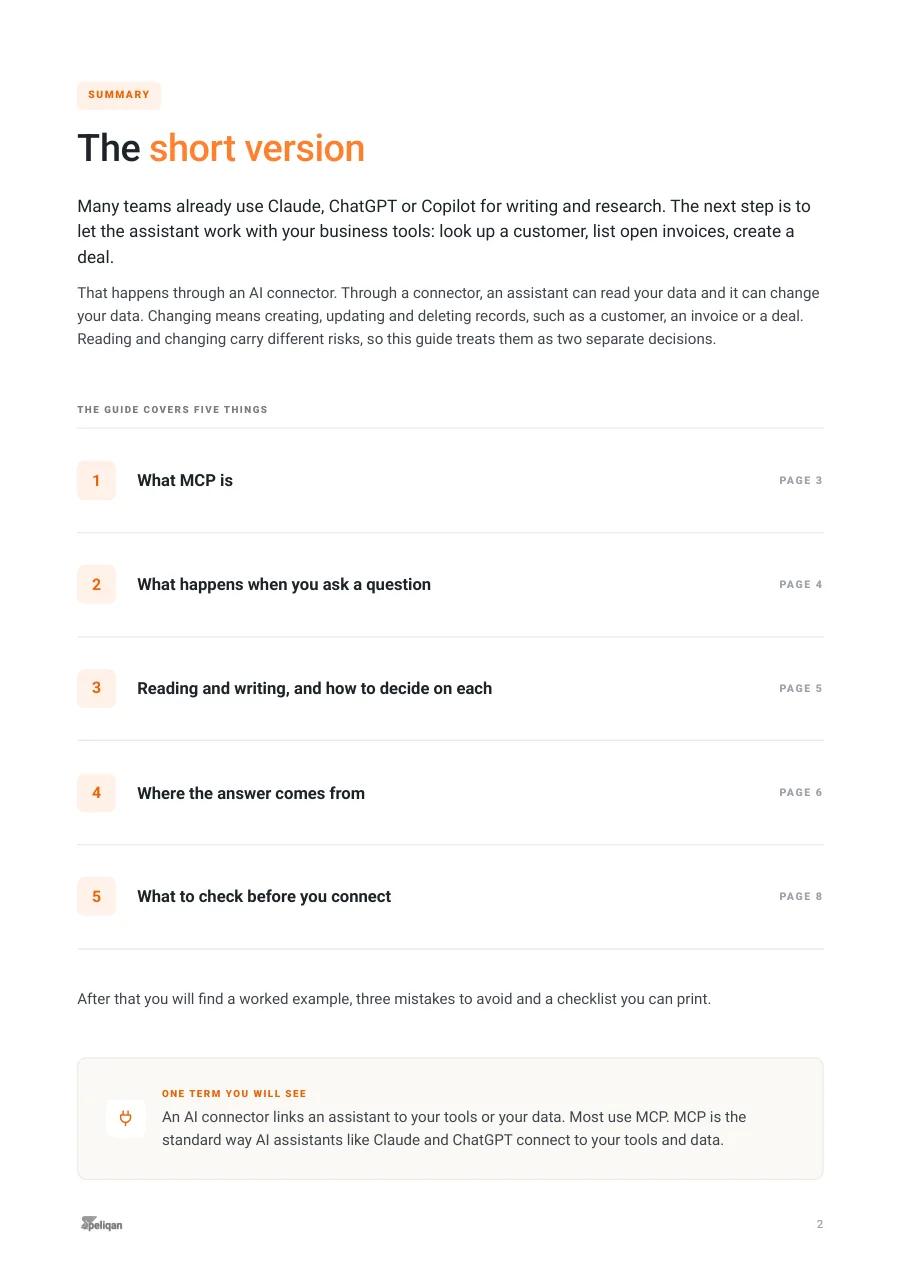
MCP is the standard way AI assistants like Claude and ChatGPT connect to your tools and data. An AI connector is what you add in your assistant, and most connectors use MCP.
Can the assistant change data in our tools?
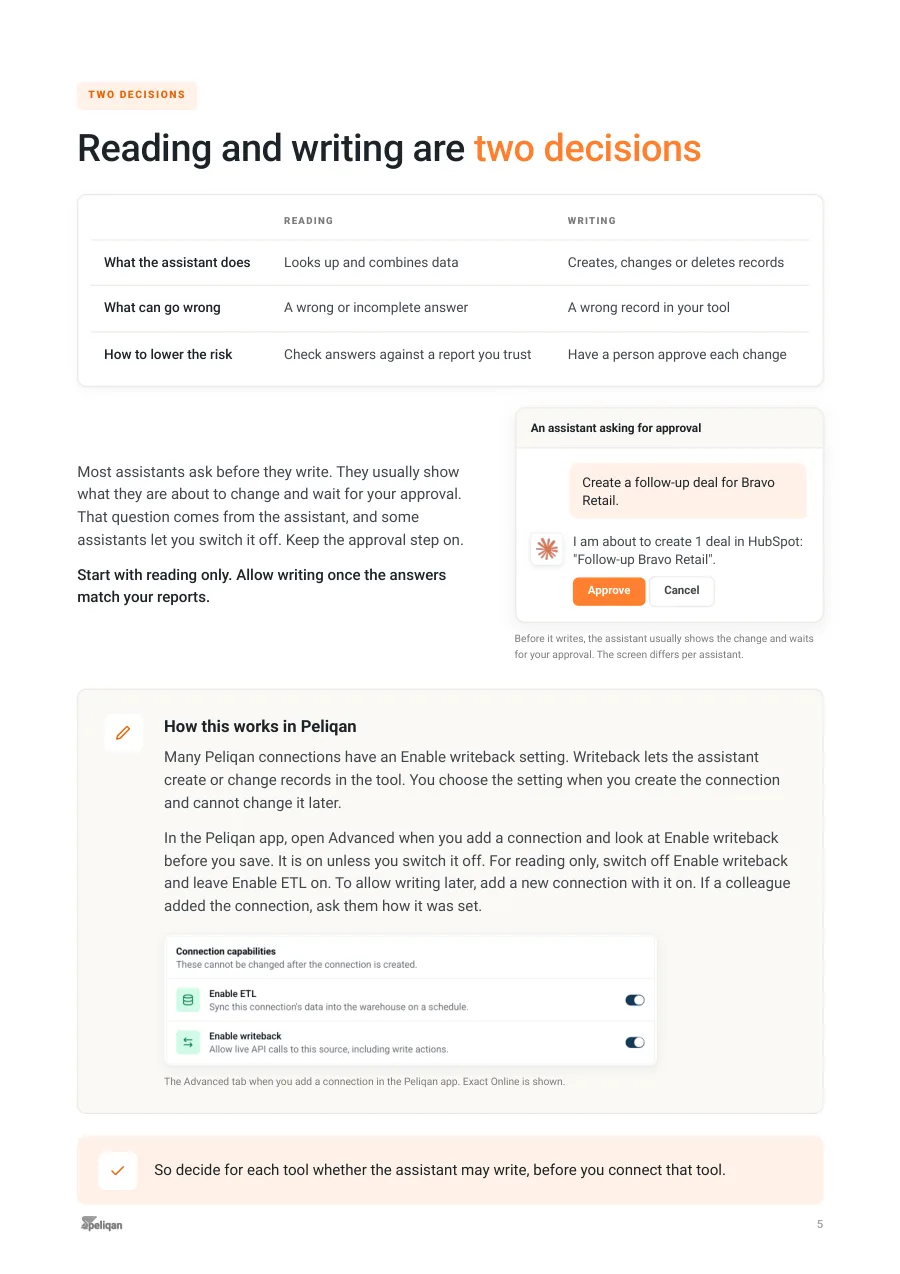
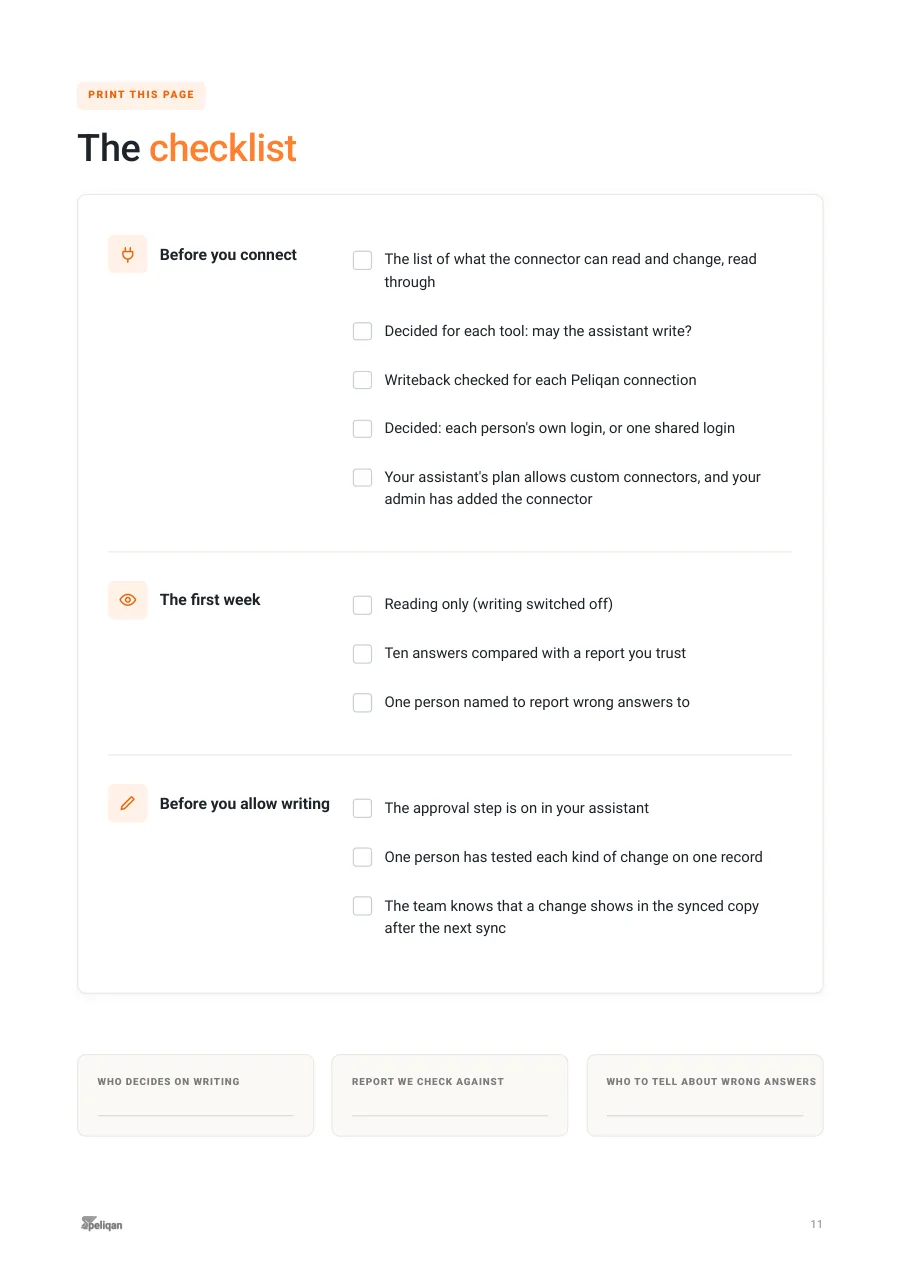
It can, if the connector allows writing. Writing means creating, updating or deleting records. Most assistants show the change and ask for your approval first. Start with reading only, and allow writing once the answers match your reports.
Is the answer always up to date?
That depends on the connector. The data is either live or as of the last sync. Find out which one you have before you act on a number.
Whose login does the assistant use?
Either each person connects with their own login, or the whole team uses one shared login. With a shared login, everyone who can use the connector acts with that login’s permissions.
What is sent to the AI provider?
Your question and the data that comes back are processed by the provider of your assistant. Check the data terms of your plan for whether your data is used to train models, and where it is processed.
What do we need to get started?
An AI assistant on a plan that allows custom connectors, meaning connectors you add yourself. A login for each tool you want to connect. And a Peliqan account, if you use Peliqan as the connector.