
Peliqan gives you two kinds of MCP server, and each one answers a different kind of question. The first arrives with your account and reaches the data you have already synced. The second is one you build yourself, because some answers depend on how your business actually works.
About the Peliqan MCP server
Every Peliqan account includes a standard MCP server. It exposes the CRM, ERP and accounting data you have already synced, so your AI assistant can browse it, query it and build on it. You connect it with one URL, and your assistant then signs in with your Peliqan account. As a result, you never create or rotate an API key.
Because Model Context Protocol is an open standard, the same endpoint works across assistants instead of locking you to one.
Works with Claude, ChatGPT, Copilot and Cursor
Any client that supports custom connectors can use the endpoint. For example:
- Claude: use it in the desktop app or on the web.
- ChatGPT: add it as a custom connector.
- Microsoft Copilot: reach it from Microsoft 365.
- Cursor: point the IDE agent at it.
How to connect Peliqan to your AI assistant
- 1First, open your account in Peliqan and copy your MCP endpoint:
https://mcp.eu.peliqan.io/mcp. - 2Then in Claude, go to Settings, Connectors, Add custom connector. Paste the endpoint and choose Add.
- 3Next, sign in with your Peliqan account when Claude asks, and approve the permissions once.
- 4Finally, ask a question about your data. ChatGPT, Cursor and Gemini also take the same endpoint in their own connector settings.
Build an in-house MCP server for your own logic
The standard server answers questions about your data. However, some answers depend on how your business actually works, and that logic lives in your head rather than in a table. For those, you build a second, in-house MCP server.
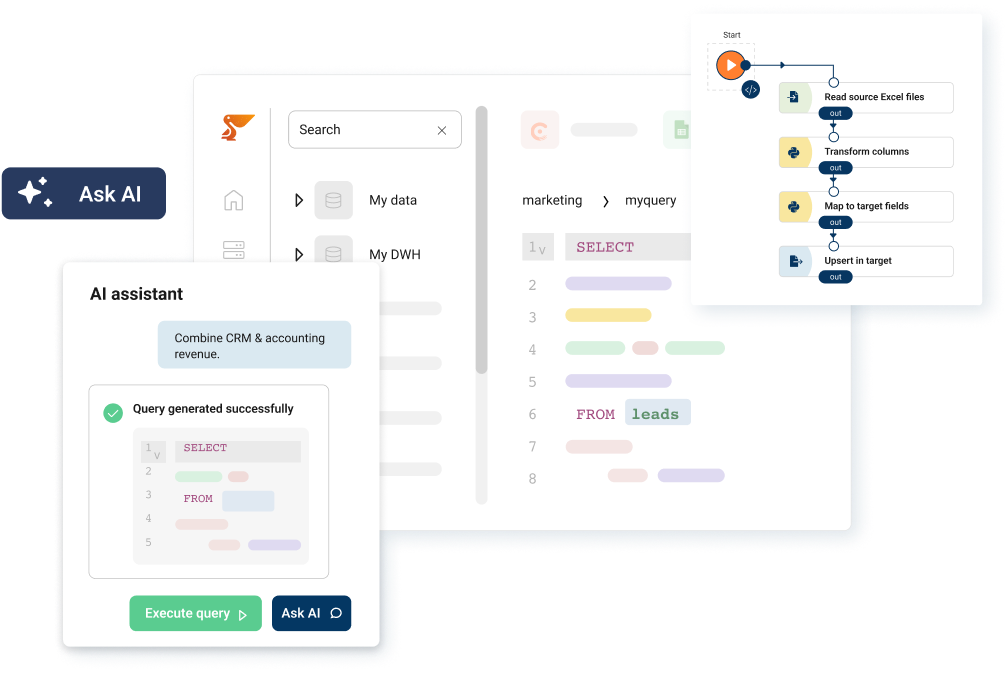
Start from the MCP Server template in Peliqan, then put your logic in a short Python function and publish it as a tool. You also set custom permissions on it, so the tool reaches only the data and the actions you intend. Your assistant then calls that tool by name, and everyone gets the same answer.
Where the data comes from
Both servers sit on top of the same synced data. In other words, whatever you have already connected is exactly what your assistant can reach. You can see the full list on the connectors page.
Ready to build this on your own data? Get started with Peliqan.