
Want to connect Fortnox to Claude, ChatGPT or Cursor? This guide shows how to do it in three steps with the no-code Peliqan MCP server. Once it is set up, your AI assistant can query live Fortnox data: invoices, customers, articles, orders, offers, accounts, financial years, employees, expenses and cost centres. There are no exports, no API keys to manage and nothing to install. If you want the full feature list first, see the Fortnox MCP page.
What you need before you start
- A Fortnox account with access to the company you want to query
- A Peliqan account (7-day free trial, no card needed)
- Claude, ChatGPT, Cursor or another AI client that supports custom MCP connectors
How to connect Fortnox to Claude in three steps
- 1Sign up for Peliqan and connect Fortnox. Create your Peliqan account with Fortnox preselected, then connect your Fortnox account with your own credentials. Peliqan stores the connection on its side and keeps the data in sync, so your AI client never sees your Fortnox login.
- 2Add Peliqan to Claude. The MCP setup step at the end of the Peliqan onboarding walks you through it. In Claude, open Settings → Connectors → Add custom connector, paste
https://mcp.peliqan.io/mcpas the server URL, click Add, then log in with your Peliqan account and approve. Claude now sees your Fortnox tables as tools. - 3Ask Claude about your Fortnox data. Type a question in plain language. Claude looks up the live figures and answers in the chat. Where writeback is on, it can also change a due date or a payment term on an invoice for you.
Connect Fortnox to ChatGPT, Cursor or Copilot
The same server works in every MCP client, so you only set up Fortnox once. In ChatGPT, Cursor, Gemini or VS Code with Copilot, add https://mcp.peliqan.io/mcp as a custom MCP server in the client’s connector settings and log in with the same Peliqan account. ChatGPT allows custom MCP servers on its Business and Enterprise plans. As a result, you can switch AI tools, or use several side by side, without touching Fortnox again.
What your AI can read and write in Fortnox
The Fortnox connector gives your AI 42 tables with full history, 3 live lookups and 2 write actions. These are the ones people use most:
| Read (tables and live lookups) | Write (actions) |
|---|---|
| Invoices, invoice details, invoice payments and invoice accruals | Update an invoice (due date, payment terms, references, comments, cash and booked flags) |
| Customers, customer details and contracts | Any Fortnox API call |
| Articles, article details, offers, orders and incoming goods | |
| Accounts, financial years, locked periods, cost centres and currencies | |
| Employees, absence and attendance transactions and expenses | |
| Live: get an invoice, a customer or an article by number |
The full list is on the Fortnox connector page. Fortnox is the Swedish accounting product. Reads cover the ledger, sales, purchasing and HR; writes are limited to updating invoices and raw API calls. Because Peliqan keeps the full history rather than a recent window, you can ask about last year, not just last month.
Example prompts once Fortnox is connected
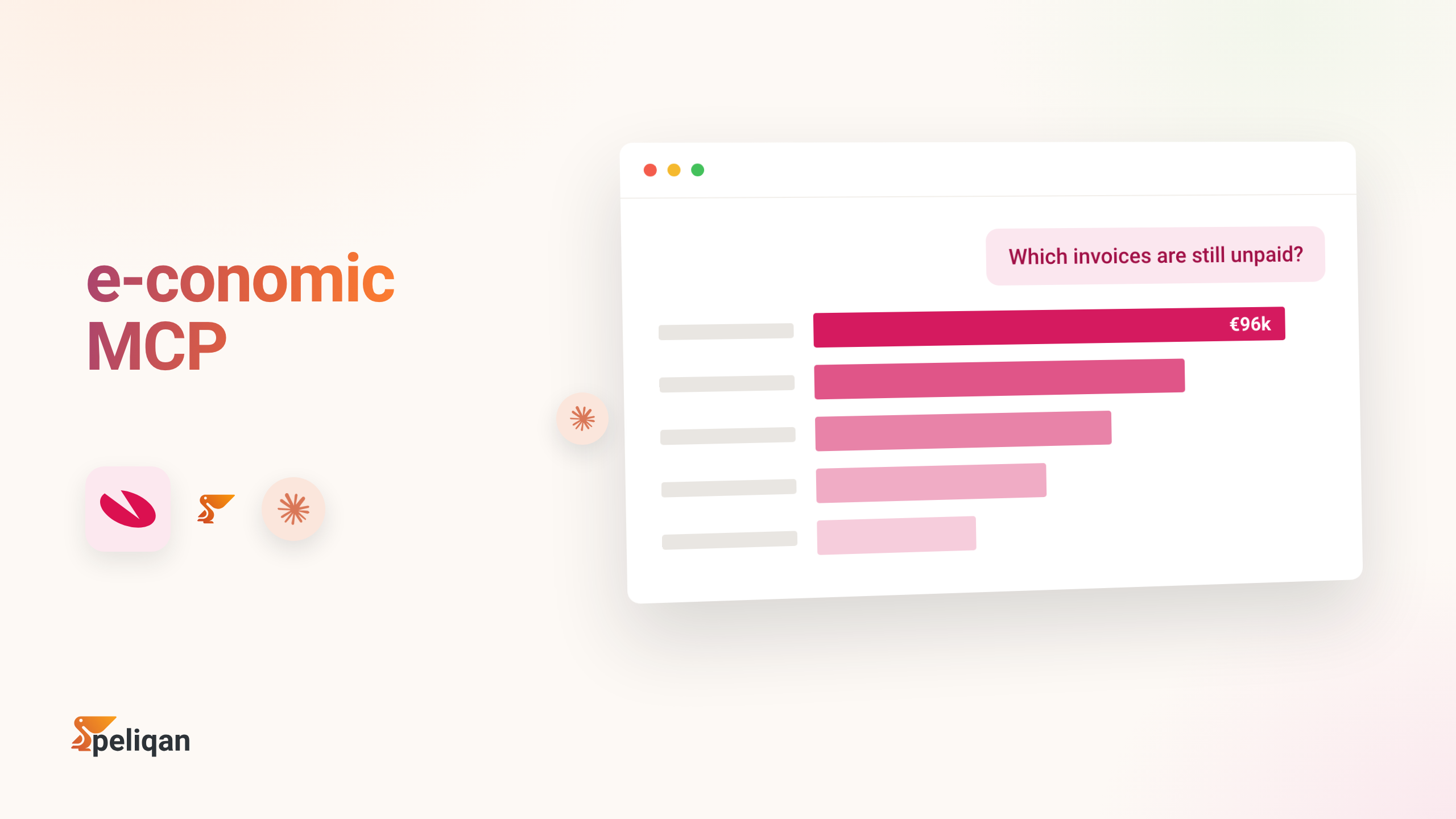
- “Which customer invoices are unpaid past their due date, and what is the total?”
- “Show an aged receivables breakdown: 0 to 30, 31 to 60 and over 60 days.”
- “What was our revenue and gross profit last quarter compared with the same quarter last year?”
- “Vilka fakturor förfaller den här veckan?”
- “Change the due date on invoice 1055 to the end of next month.”
Writeback is on by default
When you connect Fortnox, Peliqan enables the write actions as well as the reads. So Claude can change a due date or a payment term on an invoice when you ask it to. If you prefer a read-only setup, switch writeback off for that connection in Peliqan. The switch sits on the connection itself, so you can keep reads on and writes off for one account and the reverse for another. Writes go straight to Fortnox; the synced copy updates at the next sync, and for the very latest record the AI reads live. Your AI app normally asks you to approve each write before it runs.
About the Fortnox MCP server
Model Context Protocol (MCP) is the open standard that lets AI assistants work with external tools and data. The Peliqan Fortnox MCP server is a hosted, MCP-compliant endpoint that exposes your Fortnox data to Claude, ChatGPT, Cursor, Gemini and any other MCP client. You install nothing and maintain nothing. Peliqan holds the Fortnox connection; your AI client logs in to Peliqan, not to Fortnox. To learn more, read about the Peliqan MCP server or browse all Peliqan connectors.
Ready to connect Fortnox to Claude? Start your free trial, or talk to us if you want help setting it up for your team.